- JMP will suspend normal business operations for our Winter Holiday beginning on Wednesday, Dec. 24, 2025, at 5:00 p.m. ET (2:00 p.m. ET for JMP Accounts Receivable).
Regular business hours will resume at 9:00 a.m. EST on Friday, Jan. 2, 2026. - We’re retiring the File Exchange at the end of this year. The JMP Marketplace is now your destination for add-ins and extensions.
- Subscribe to RSS Feed
- Mark Topic as New
- Mark Topic as Read
- Float this Topic for Current User
- Bookmark
- Subscribe
- Mute
- Printer Friendly Page
Discussions
Solve problems, and share tips and tricks with other JMP users.- JMP User Community
- :
- Discussions
- :
- CTRL/Alt/Shift + click/select/double click/right click

- Mark as New
- Bookmark
- Subscribe
- Mute
- Subscribe to RSS Feed
- Get Direct Link
- Report Inappropriate Content
CTRL/Alt/Shift + click/select/double click/right click
edit:
I have to confess - I am an Efficionado *)
*) from Everyday Efficiency: Making Data Smarter. Making Smarter Data. / @julian

It's no wonder that I encourage everyone to use JMP!
In JMP there are thousands of hidden "easter egg" efficiency hacks.
Many of them are even harder to find than the shortcut to start @julian 's Microwave.

So, here is an overview of many **) efficiency hacks in JMP :
what will happen when you CTRL/Alt/Shift + click/select/double click/right click on some spot in JMP?
**) Many tricks are still missing. So please post any secrets you know and I will add them to the list.
[More Topic Containers like this]
| General | ||
| the red triangle menu is your friend |  |
|
| Right-click is your best friend |  |
|
| Select a range of adjacent items: rows, columns, legend entries ... |
Press Shift and click the first and last item sometimes: click and drag. |
|
| Select or deselect non-adjacent items | Press Ctrl and click each item | |
| Paste a list of column names from the clipboard into a dialog column list box (e.g. X,factor) |
Right-Click into the dialog and click on paste |  |
| Graphs / Graph Builder | ||
| use a column for the graph | drag it into the plot area or: drag it into a dropzone |
|
| use 2 columns in a common subplot [ordinal column] | drag them onto the X or Y axis or: drag the second column almost into the same dropzone (the dropzone with position towards the graph) (*) |
|
| create a hierarchy on the X or X axis | drag an additional column almost into the same dropzone (the dropzone further away from the graph) | |
| create a hierarchy in the Group X or X region | drag an additional column into the corner of the Group X/Y DropZone | |
| sort an axis by a second column [numeric column] | drag the second column almost into the same dropzone (the dropzone with position towards the graph) (same as in *, but numeric column) | |
| use 2 columns in separate subplots |
drag them onto the X or Y axis (while pressing Shift) or: drag the second column onto the the same axis, next to the first region |
|
| use 2 columns as color |
drag both columns into the color drop zone |
|
| Select points in a rectangular region. | Click and drag the arrow tool. | |
| Select points in a non-rectangular region. | use the lasso tool | |
| extend the selection | press Shift and select. | |
| remove data points from the (partial) selection | press SHIFT + CTRL and select | |
|
toggle data points unselected ones get selected) |
press CTRL / ⌘ and select | |
|
select points via the legend |
click on an entry in the legend | |
|
remove data points from the (partial) selection |
press CTRL / ⌘ and click (2x will trigger selection) or press Shift + CTRL / ⌘ and click (2x won't have an effect) |
|
|
extend the selection |
press CTRL / ⌘ and click (eventually twice - first to deselect (partial selection)) |
|
|
toggle data points |
? | |
|
select points in an interactive HTML |
click on a point or a legend entry |  |
|
remove data points from the (partial) selection |
press shift and/or CTRL / ⌘ and click (2x will trigger selection) |
|
|
extend the selection |
press shift and/or CTRL / ⌘ and click (eventually twice - first to deselect (partical selection)) |
|
| Change axis settings. | Double-click or press Alt and click the axis. | |
| Add a reference line | Double-click the axis at the desired position - the corresponding value will show up in the axis/reference line menu. |  |
| Change axis range |
click and drag and axis perpendicular to the axis to change the range |
|
| Change the binning of a Histogram Plot |
Use the grabber tool: |
|
| Reset the zoom to the original *) plot *) either defined by the script or last state before using the magnifier the first time |
double click into the graph (alternatively: Alt + click) (with magnifier tool) |
 |
| change the color/marker etc. settings of a specific legend entry | hover over the legend entry, right click and change the setting | |
| change the color/marker etc. settings of all legend entries referring to the same rows (lines and markers at the same time) | select on of the legend entries by clicking, right click and change the setting | |
| change the color/marker etc. settings of multiple legend entries without affecting other legend entries for the same rows (so, selecting entries in the legend is no option) |
double click on the legend to open the legend menu. Select the entries and apply the settings via right-click | Thanks Sven :) |
| clear label selection |
click on one of the selected items |
 |
| Show excluded data points / categories. |
Press Shift, click the red triangle icon, and click on Show Excluded Rows |
|
| change parallel merge settings |
Press Shift, click the red triangle icon, and click on Show Excluded Rows |
|
| change the type of summary statistics |
Right-click on the caption box, click summary statistics and change the type. CTRL / ⌘Right-click to change the type in all subplots simultaneously |

|
| Let a 3D Scatterplot spin | Press Shift and drag it with the mouse | 
|
| scale subplots individually | resize the label (go from the label to the side, till the mouse changes to an arrow) - not the framebox! |  |
| Change/sort X Group labels | Right click - Configure Levels ... | |
| synchronize parallel axes | Shift click red triangle / Parallel Axis Merging |  |
| add an additional plot theme to the Plot | Shift click into another plot theme icon on the top | |
| add/remove plot themes to/from individual subplots | Ctrl click into the upper/center/lower left/center/right region of the respective plot theme icon corresponding to the location of the subplot | |
| change tick labels | click on a tick label and hold the mouse button for a while, edit the label and press ESC |  |
| pin Crosshair | right click - then (left) click on the window title |  |
| Profiler | ||
| change factor settings | Alt + click into one of the profiler graphs | |
| Reports | ||
| add a column to a report |
drag it from the column list into the report (just works if the variable is is dropped exactly into the drop zone) |
|
| apply a Platform Preset to a new report |
[JMP 18] drag the Platform Preset symbol from the source report onto the target report |
 |
| get a hover explanation. |
draw a small circle with your mouse |
 |
| remove the Header Bar of the OutlineBox |
delete the title of the OutlineBox |
|
| access the red triangle menu without a red triangle |
Even when the outline is hidden, there is a tiny hotspot for the red triangle menu in the upper left. |
|
| add columns to Distribution Platform |
Drag the columns from the columns menu of the table |
|
| Turn numeric report output into a data table. |
Right-click somewhere in the report and select for Reports with BY: |
 |
| broadcast a command to all similar reports in the current window. |
Press Ctrl / ⌘ and apply the command to one of the reports. e.g. - right click into a graph and apply a command |
|
| collapse similar outline boxes | Press Ctrl / ⌘, and click on the grey triangle | 
|
| Select multiple report options. | Press Alt (^ and Option) and right-click a disclosure icon |  |
| Select multiple analysis options | Press Alt / Option and click a red triangle icon |  |
| Resize all similar graphs in a report. | Press Ctrl/ ⌘ and resize one graph. | |
| change the formal of an entry | double click the entry | |
| Select multiple bars in a Distribution/Pareto plot. | Press Shift or Ctrl/ ⌘ and click the bars. (differs from the "typical" explorer-like behavior: (Ctrl/ ⌘ to select inividual entries, Shift to select all entries in between) which is used for row, legend entries, ...) |
|
| Deselect multiple bars in a Distribution/Pareto plot. | Press Ctrl and click the bars. | |
| Create a subset of the data table from a histogram/Pareto Plot. |
Double-click / Press Shift,select the bars that you want to subset, and then double-click / Select one or more bars, right-click, and then select Subset. |
|
| Change the scale of a slider in the Contour Profiler. | Right-click the slider. (mac: Press ^ and click the slider.) |
|
| Specify or lock a factor value in the Prediction Profiler. | Press Alt and click inside one of a factor’s panes. | |
| Transpose the factors in a two-factor interaction LS Means plot. | Press Shift and select the LS Means Plot command. | |
| Specify the alpha level when saving mean or individual confidence intervals. | Press Shift, click the red triangle icon, and then select the command. | |
| Specify theta (for exponential), beta (for Weibull), or sigma (for lognormal) parameters for WeiBayes analysis. | Press Shift and select Exponential, Weibull, or Lognormal Fit from the Product-Limit Survival Fit red triangle menu. | |
| Lock a factor (in a profiler) | Press Alt and click into the respective plot, then select Lock Factor Setting | |
| Show Tree Structure of a Report | Ctrl+Shift+Right Click the top left corner | |
| Tables | ||
| Copy and paste columns with their properties (e.g. formulas) | use Copy/paste Column via right click on the column headers | |
| let JMP calculate the value for a cell | type "=" followed by the equation :) |
|
| you selected some columns and want to get the columns selected in the data grid - without interfering with the column / row selection | use Tab (2-4 times) to navigate to the data grid | |
| change property of multiple columns in columns manager | select multiple columns and press CTRL when changing the setting (will prevent JMP from resetting the selection) | |
| Jump to a column in the data grid | Click on the column in the column list on the left. < v19: double click |
 |
| search (select) a column in the column list on the left | select any column - type the name | |
| resize a column | double click the divide line for multiple columns: select the columns first |
|
| keep a column visible all the time | Select a column, click Col Menu/Scroll Lock | |
| Deselect rows and columns. | Click the top triangular region in the upper left corner of the data grid to deselect columns. Click the bottom triangular region to deselect rows. |  |
| shortcut to the rows/columns menu |  . right click : lower left / upper right . right click : lower left / upper right[functionality was removed in JMP19] |
|
| add columns/rows | double-click the top/bottom triangular menu in the upper left corner | 
|
| add a single column /multiple columns ... 1 row / multiple rows |
double-click in the table right to the last column (further to the right for more columns) ... same for rows |
 |
| enter a new column name | click on the column name on the top of the table and start typing |  |
| Copy a list of column names to the clipboard | Select the columns in the column list on the left of the data table and press CTRL/ ⌘ + C |
 |
| change several column names at once |
copy the column names to the clipboard Restore data-grid behavior: Pasting onto column names to rename them |
|
| fill all cell of a column with the same value | select the column header - no row selection - Ctrl/ ⌘ + V NOT: overwrite the column name (!) |
|
| Repeat values or a sequence of values in a column. | Right-click on selected cells. Select Fill and the appropriate command. |
|
| Fill empty values with previous entries of that column. |
select a column and some rows, Right-click on an entry and press Replace missing |
 |
| Generate a subset of the current selection | right click on Selected and click on Data View | 
|
| move column(s) to another position in the data table | select the column(s) (on top of the table or in the columns list on the left), keep the mouse button pressed and drag the column(s) to the new position | |
| Merge column(s) from a summary table into the main table | select the column(s) (on top of the summary table ). Click again, keep the mouse button pressed and drag the column(s) to the main table. |
|
| Edit a Table Script | Double-Click the script [functionality was removed in JMP19, is now: edit script name] Restore Edit a table script with double-click, Paste a table script with Ctrl+v |
|
| Copy a table script | select the script and press CTRL / ⌘ + C | |
| Paste a table script | click into the script panel and press CTRL / ⌘ + V [functionality was removed in JMP19] Restore Edit a table script with double-click, Paste a table script with Ctrl+v |
|
| Edit the name of a Table Script | Select a script, then click again [functionality was removed in JMP19] |
|
| copy a column script | Right-Click on the column header and click on Copy Columns | |
| copy a column script - including the values | select all rows, Right-Click on the column header and click on Copy Columns | |
| copy a column script - including the values of N specific rows | select the rows, Right-Click on the column header and click on Copy Columns (strange:values will be applied to the first N rows) |
|
| define multiple value labels at once | copy value & label pairs from a table, point at the field with value-label pairs and paste (instead of entering them one by one) | |
| adjust the column width to the content | [JMP 18] double click the separator line | |
| Intersection of current selection and entry in Header graph. |
Ctrl/ ⌘ + click on an entry in a header graph [functionality was removed in JMP19] Restore data-grid behavior: Pasting onto column names to rename them |
|
| JSL Editor | ||
| Select a non-rectangular block of text | Click and drag the cursor. | |
| Select a rectangular block of text | Press Alt and drag the cursor over the text. | |
| Select multiple rectangular blocks of text | Press Ctrl and drag the cursor over a non-rectangular block of text. Move the cursor to a new location and repeat. Copying, cutting collects the text in the order in which each block was selected. |
|
| type synchronously at multiple positions in the text | Press Ctrl and click on multiple positions, then start typing. |
|
| Open JSL command in Scripting Index | Press Alt and double-click on a command | |
| Run a script with a specific data table | copy the script and paste it into the table script menu |
|
| Select the code between brackets | Doble-click one of the brackets | |
| ... marke the command in front as well | ... press Shift and click on the first letter of the command or: press CTRL + Shift + arrow left (N times) |
|
| copy a line of code | place the cursor into the line ( no need to select anything) and press CTRL/ ⌘ + C |
|
| Formula Editor | ||
| Terminate running code |
Press Esc |
|
| Build Match function conditionals |
Select a column from Table Columns list. Press Shift and select Match from Conditional formula list. |
|
| replace something in the formula with something else | select the item to replace (-> blue rectangle) Double-click the new item (column, constant, variable, parameter) |
 |
| Swap two expressions in a formula. | Drag one expression on top of the other expression. |  |
| Column List Box | ||
| Add a column to the list | drag the column into the list | |
| Remove column from a list (Platform menu, Column Switcher etc.) |
double click the column entry in the list |  |
| Data Filter | ||
| Add a filter | double click on the column | |
| Add multiple filters at once | select multiple columns and click 
|
|
| numeric data filter: change the upper/lower limit |
drag the fence, click onto the number and enter a new value |

|
| numeric data filter: move the range |
click the shaded pass region and move it to the new location |

|




- Mark as New
- Bookmark
- Subscribe
- Mute
- Subscribe to RSS Feed
- Get Direct Link
- Report Inappropriate Content
Re: CTRL/Alt/Shift + click/select/double click/right click
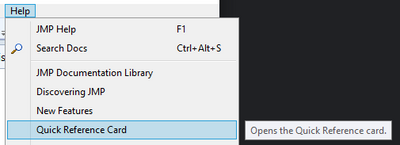
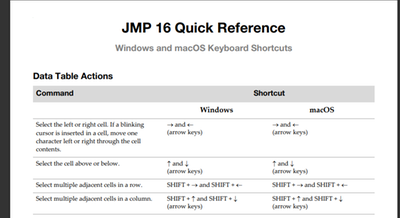
Quick Reference Card is one place where you can find some of those. Quick Reference Card can be accessed from JMP's help menu
- Mark as New
- Bookmark
- Subscribe
- Mute
- Subscribe to RSS Feed
- Get Direct Link
- Report Inappropriate Content
Re: CTRL/Alt/Shift + click/select/double click/right click
Thanks @jthi :)
Starting with these 9 pages, let's see how far we can get collecting also the easter eggs from the better hidden places ...
I will collect all posts in one table.
edit: table moved to the 1st post

- Mark as New
- Bookmark
- Subscribe
- Mute
- Subscribe to RSS Feed
- Get Direct Link
- Report Inappropriate Content
Re: CTRL/Alt/Shift + click/select/double click/right click
During my tenure as a Senior JMP Systems Engineer I told my JMP/JMP Pro customers, "When in doubt, move the cursor/I beam over the thing you are most interested in, and right click. Chances are good this will uncover a pathway to do whatever it is you are trying to do." Or as my colleague @gail_massari was fond of saying, "Right click is your friend."


 Community Manager
- Mark as New
- Bookmark
- Subscribe
- Mute
- Subscribe to RSS Feed
- Get Direct Link
- Report Inappropriate Content
Re: CTRL/Alt/Shift + click/select/double click/right click
@hogi, Thank you for adding information about selection in Interactive HTML (and JMP Live).
More information on how to interact with Interactive HTML content can also be found here:
https://www.jmp.com/support/help/InteractiveHTML/17/ShareJMPReports.shtml
Thanks,
~John
- Mark as New
- Bookmark
- Subscribe
- Mute
- Subscribe to RSS Feed
- Get Direct Link
- Report Inappropriate Content
Re: CTRL/Alt/Shift + click/select/double click/right click
Thanks @John_Powell_JMP for the link.
I added an easter egg link.
- Mark as New
- Bookmark
- Subscribe
- Mute
- Subscribe to RSS Feed
- Get Direct Link
- Report Inappropriate Content
Re: CTRL/Alt/Shift + click/select/double click/right click


- Mark as New
- Bookmark
- Subscribe
- Mute
- Subscribe to RSS Feed
- Get Direct Link
- Report Inappropriate Content
Re: CTRL/Alt/Shift + click/select/double click/right click
With the release of JMP 18 imminent, I'll add one from there. Have you ever opened a data table with the column titles wrapped or cut off just a bit making them hard to read? In JMP 18, select the affected columns and double-click on one of the divider lines between column headers to have JMP auto-size the columns making them more readable. This can also be done in the menus using Cols > Reset Display Width. If there's just a single column to fix up, double-click the right edge of its title box and it'll reset the width.
- Mark as New
- Bookmark
- Subscribe
- Mute
- Subscribe to RSS Feed
- Get Direct Link
- Report Inappropriate Content
Re: CTRL/Alt/Shift + click/select/double click/right click

- Mark as New
- Bookmark
- Subscribe
- Mute
- Subscribe to RSS Feed
- Get Direct Link
- Report Inappropriate Content
Re: CTRL/Alt/Shift + click/select/double click/right click
JMP 19: click on a column in the column list to get it into view in the data grid :)
[replaces the double click]
A new era of interactivity!
Recommended Articles
- © 2025 JMP Statistical Discovery LLC. All Rights Reserved.
- Terms of Use
- Privacy Statement
- Contact Us