Turn on suggestions
Auto-suggest helps you quickly narrow down your search results by suggesting possible matches as you type.
- JMP will suspend normal business operations for our Winter Holiday beginning on Wednesday, Dec. 24, 2025, at 5:00 p.m. ET (2:00 p.m. ET for JMP Accounts Receivable).
Regular business hours will resume at 9:00 a.m. EST on Friday, Jan. 2, 2026. - We’re retiring the File Exchange at the end of this year. The JMP Marketplace is now your destination for add-ins and extensions.
Options
- Subscribe
- Mark as read
- Mark as new
Learn JMP Events
Events designed to further your knowledge and exploration of JMP.- JMP User Community
- :
- Learn JMP
- :
- Learn JMP Events
- :
- Using Geographic Maps
Using Geographic Maps

Learn the basics about using Geographic Maps using JMP. After become familiar with using these maps, consider viewing the video on Creating Custom Maps to Enhance You Analysis.
See how to:
- Use map shapes built into JMP (World Demographics example)
- Use latitude and longitude to enhance maps (San Francisco Crime example)
- Build size, and filter Bubble Plots on maps
Questions answered by Oliviia Lippincott @O_Lippincott and Tom Donnelly @tom_donnelly after the demo:
Q: Are there any Map Preferences I can set:
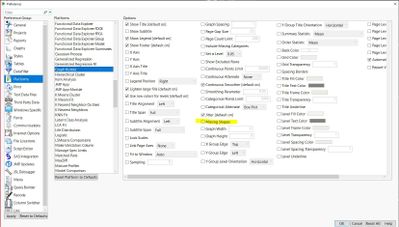
A: Yes, they are under File>Preferences>Platforms>Graph Builder. The Missing Shapes preference assures missing shapes show up. Or, you can show missing shapes interactively for the map you are using in Graph Builder.
Q: Can I add my own maps?
A: Yes, if you right click and look at the background map (from Graph Builder Map, R-click>Graph>Background Map, you can pint to a url where maps are stored. You can also load other maps and boundaries directly to JMP> Boundaries you add will show up on the Boundaries list. See how:
Q: How are bubble sizes determined and can I change them?
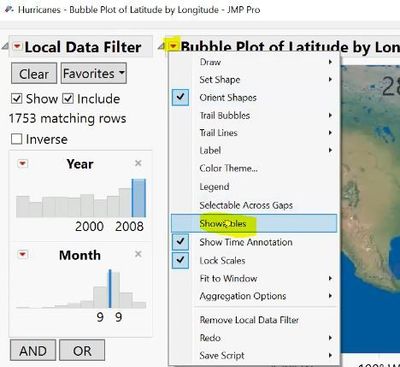
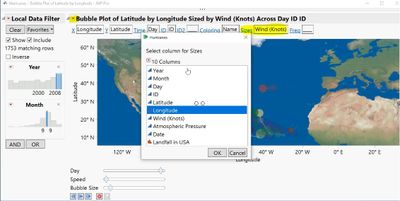
A: Bubble size is relative based on the variable (Column) that you want to show. To see what you have chosen, from Bubble Plot red triangles select Show Roles. Change the analysis if you want to plot bubbles for a different variable.
Resources
- US Zip Code Map Files
- US Zip Code Longitude, Latitude, City, State
- Geocoding Place Names (JMP Add-In)
- Geocoder Add-In Uses the service from Mapquest to find geo-codes for addresses and calculate distances, travelling times or complete routes between pairs of locations.
- Custom Map Creator Add-In
- JMP documentation on mapping
- Short video on JMP mapping
If you saved custom map files when using a previous version of JMP, for example JMP 15, you should move the files to the directory for your current version of JMP or JMP Pro:
- On Windows C:\Program Files\SAS\JMP\16\Maps
- On Mac: /Library/Application Support/JMP/16/Maps
- On Windows C:\Program Files\SAS\JMPPRO\16\Maps
- On Mac: /Library/Application Support/JMPPRO/16/Maps
.shp files are located:
- On Windows C:\Program Files\SAS\JMP\version_number\Samples\Import Data
- On Mac: /Library/Application Support/JMP/version_number/Samples/Import Data
Note: for JMP PRO, use directory name JMPPRO. If you cannot see the file, you might need to change the file type to All Files.
Start:
Mon, Jul 11, 2022 02:00 PM EDT
End:
Mon, Jul 11, 2022 03:00 PM EDT
Upcoming Events
-
Visual Data Discovery with Graph Builder
Feb 27Work smarter by easily spotting patterns, relationships, and outliers through dynamic linking, drag-and-drop visuals, and point-and-click actions.... -
Data Exploration for Upstream Processing and Fermentation
Jan 30EMEA Mastering JMP Experimenting with microbial and mammalian systems brings a multitude of data; bioreactor sensor data, sampling events and growth...
0 Comments

- © 2025 JMP Statistical Discovery LLC. All Rights Reserved.
- Terms of Use
- Privacy Statement
- Contact Us