- JMP will suspend normal business operations for our Winter Holiday beginning on Wednesday, Dec. 24, 2025, at 5:00 p.m. ET (2:00 p.m. ET for JMP Accounts Receivable).
Regular business hours will resume at 9:00 a.m. EST on Friday, Jan. 2, 2026. - We’re retiring the File Exchange at the end of this year. The JMP Marketplace is now your destination for add-ins and extensions.
- Subscribe to RSS Feed
- Mark Topic as New
- Mark Topic as Read
- Float this Topic for Current User
- Bookmark
- Subscribe
- Mute
- Printer Friendly Page
Discussions
Solve problems, and share tips and tricks with other JMP users.- JMP User Community
- :
- Discussions
- :
- jmp tabulate to excel

- Mark as New
- Bookmark
- Subscribe
- Mute
- Subscribe to RSS Feed
- Get Direct Link
- Report Inappropriate Content
jmp tabulate to excel
Is there an add-in that can export tabulate to excel?
I only found add-in that can export data table to excel.
Thanks in advance!

- Mark as New
- Bookmark
- Subscribe
- Mute
- Subscribe to RSS Feed
- Get Direct Link
- Report Inappropriate Content
Re: jmp tabulate to excel
It's still not 100% clear what your end goal is with respect to the JMP output. When you say you need to produce the report as tabs in Excel, I'm interpreting that as you need to show the JMP Tabulate report as content in a seperate and distinct Excel tab. If my interpretation is correct, one way you could do this besides those I've mentioned above is to save the JMP Tabulate report as an Interactive or static HTML object. Then you can embed each object within a tab in Excel...then all someone needs is a web browser to open each object and what the Excel user will 'see' is the Tabulate report output.
- Mark as New
- Bookmark
- Subscribe
- Mute
- Subscribe to RSS Feed
- Get Direct Link
- Report Inappropriate Content
Re: jmp tabulate to excel
You mentioned copy/paste to excel, however once I do that it will end up all in one column, not the right format. Though if I pasted it to Notes first, and then pasted it to excel, I do get the correct format, just without the frames.
Thanks,
Joann

- Mark as New
- Bookmark
- Subscribe
- Mute
- Subscribe to RSS Feed
- Get Direct Link
- Report Inappropriate Content
Re: jmp tabulate to excel
@joann,
If all you wanted is the result of JMP tabulation in Excel repeatedly, would something like this work ?
dt = Open( "$SAMPLE_DATA/Car Poll.jmp" );
dt1 = (dt << Tabulate(
	Add Table(
		Column Table( Grouping Columns( :sex, :marital status ) ),
		Row Table( Grouping Columns( :country, :size ) )
	)
)) << Make Into Data Table;
dt1 << Set Name("TabulateResults");

Create Excel Workbook( "c:\MyWorkbook.xlsx", {"TabulateResults"} );Uday
- Mark as New
- Bookmark
- Subscribe
- Mute
- Subscribe to RSS Feed
- Get Direct Link
- Report Inappropriate Content
Re: jmp tabulate to excel
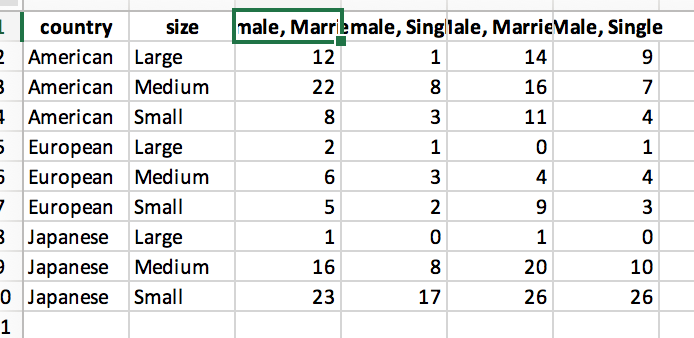
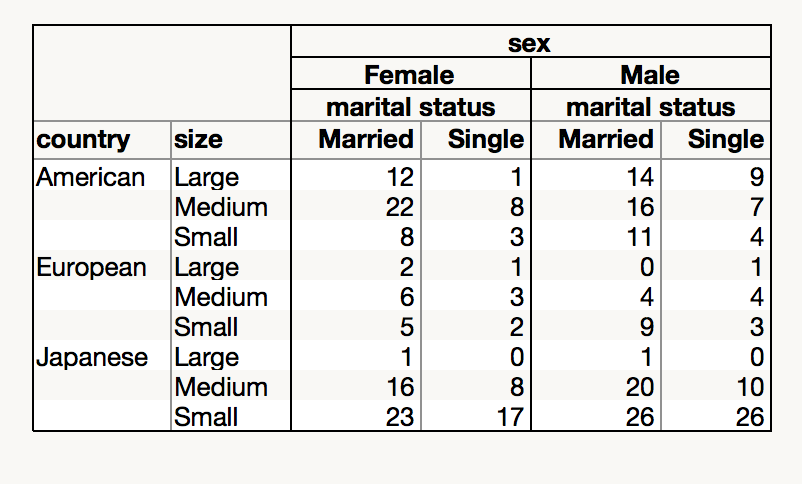
Thank you for the reply.
However with the script you provide the output looks like the below, first screenshot; while I'm looking to output the table in the second screenshot.
Thanks,
Joann


- Mark as New
- Bookmark
- Subscribe
- Mute
- Subscribe to RSS Feed
- Get Direct Link
- Report Inappropriate Content
Re: jmp tabulate to excel
- Mark as New
- Bookmark
- Subscribe
- Mute
- Subscribe to RSS Feed
- Get Direct Link
- Report Inappropriate Content
Re: jmp tabulate to excel


- Mark as New
- Bookmark
- Subscribe
- Mute
- Subscribe to RSS Feed
- Get Direct Link
- Report Inappropriate Content
Re: jmp tabulate to excel
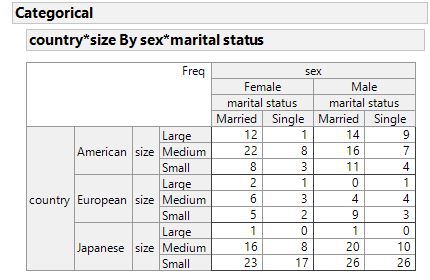
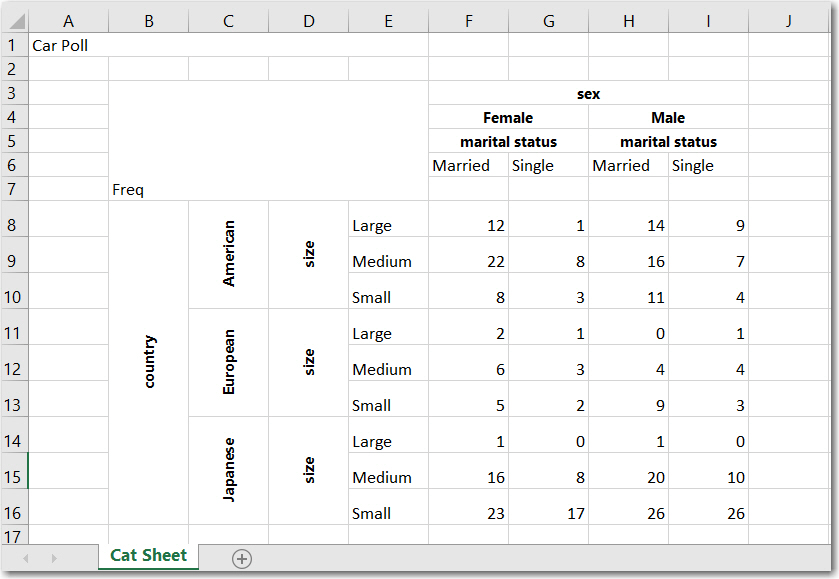
Since you did not specify, which summary statistics that you are using or your JMP version, this might not work for you. If your JMP includes the Categorical platform, and you can create your tabulate table using Categorical, there is an option to Save Excel File(). An example script, the JMP output and the Excel file are displayed below. The shading is not saved, and if labels are long they are rotated, but the structure remains.
This is just an FYI for a possible alternative. I have not used Categorical much, I know N, Means, Std Dev, % Response are available. However, I have not investigated quantiles and other statistics.
Names default to here(1);
dt = Open( "$SAMPLE_DATA/Car Poll.jmp" );
obj = dt << Categorical(
	Structured( :sex * :marital status, :country * :size ),
	Share Of Responses( 0 ),
	Share Chart( 0 ),
	Legend( 0 ),
	Total Responses( 0 )
);
obj << Save Excel File(
	"c:/temp/jmp_to_excel_categorical.xlsx",
	Separate Rows for Each Cell Statistic( 0 )
);
- Mark as New
- Bookmark
- Subscribe
- Mute
- Subscribe to RSS Feed
- Get Direct Link
- Report Inappropriate Content
Re: jmp tabulate to excel
This is an extension of Peter Bartell's suggestion: save the journal as HTML. This script adds the JSL that uses Run Program() with wscript (that runs vbscript) to import the saved HTML file and do some formatting. It is a modification of example #3 in the script 9_RunProgram.jsl from JSL Companion, Applications of the JMP Scripting Language, 2nd edition.
The script is attached.
Names default to here(1);

dt = Open( "$SAMPLE_DATA/Car Poll.jmp" );
obj = dt << Tabulate(
	Show Control Panel( 0 ),
	Add Table(
		Column Table( Grouping Columns( :sex, :marital status ) ),
		Row Table( Grouping Columns( :country, :size ) )
	)
);

dt1 = obj << Make into Data Table;
nc = ncol(dt1);
Close(dt1,NoSave);


//===== the code below will import the saved html into Excel =====

//assume < 26*26 columns
_alph = Words("ABCDEFGHIJKLMNOPQRSTUVWXYZ","");
_lc = if(nc<27 , _alph[nc],
       _alph[floor((nc-1)/26)] || if(mod(nc,26)==0,"Z", _alph[mod(nc,26)])
      );
new window("Tabulate", <<Journal);
obj << Journal();

_htmfid = "C:\TEMP\car_tabulate.htm";
_xlsfid = "C:\TEMP\car_tabulate.xlsx";

current journal() << Save HTML(_htmfid);

cmdList={
"On Error Goto 0  'stop the error handler",
"Dim xlApp",
"\[Set xlApp = CreateObject("Excel.Application")]\",
"xlApp.Visible=True",
"\[xlApp.Workbooks.Open ("^_htmfid^")]\",
"xlApp.Rows.WrapText = False",
"xlApp.Wait Now + #0:00:03#",
"\[xlApp.Columns("A:^_lc^").Select]\",
"xlApp.Selection.Columns.Autofit",
"xlApp.Cells(1, 1).Select",
"\[xlApp.ActiveWorkbook.SaveAs ("^_xlsfid^"), 51]\",
"xlApp.Quit"
};

vbsTxt = concat items(cmdList, "\!N"); //add new lines aka CR
vbsTxt = EvalInsert(vbsTxt); //insert the values for _lc, _htmfid, _xlsfid
Save Text File( "c:\temp\jj1.vbs" , vbsTxt);

rp3 = RunProgram(Executable("wscript"),
	   Options("c:\temp\jj1.vbs"),
	   ReadFunction("text")
);
Here is a screen shot of the Excel file. It is a standard Excel file with merged cells for row and column headers and values in cells.

- « Previous
-
- 1
- 2
- Next »
Recommended Articles
- © 2025 JMP Statistical Discovery LLC. All Rights Reserved.
- Terms of Use
- Privacy Statement
- Contact Us