JMP Security Notice: CVE-2026-109618 and CVE-2026-109619
JMP promptly initiated a review of its products, services, and relevant infrastructure for exposure to CVE-2026-109618 and CVE-2026-109619.
Our assessment of JMP products has not identified exposure to these vulnerabilities. Where remediation was required within supporting environments, appropriate security updates and controls have been applied and validated.
We have identified no evidence of successful exploitation or unauthorized access to JMP systems or customer information associated with these vulnerabilities.
JMP continues to monitor the issue and relevant vendor guidance. No action is required by JMP customers at this time.
- Don’t miss your chance to experience Discovery Summit Europe at our best available rate! Early bird registration through 31 Oct.
- Graph Builder Toolbar streamlines interactive graphing. Creates shortcuts on Report and GraphBuilder Helpers toolbars. Download and install the extension.
- Subscribe to RSS Feed
- Mark Topic as New
- Mark Topic as Read
- Float this Topic for Current User
- Bookmark
- Subscribe
- Mute
- Printer Friendly Page
Discussions
Solve problems, and share tips and tricks with other JMP users.- User Community
- :
- Discussions
- :
- Re: Having trouble changing the y axis scale

- Mark as New
- Bookmark
- Subscribe
- Mute
- Subscribe to RSS Feed
- Get Direct Link
- Report Inappropriate Content
Having trouble changing the y axis scale
I am working on a graph of Voltage vs Current. I have my y axis (current scale) set to log and i want to change the scale to the format 10e-2 (for example). Everytime I try to do this, the graph scale to 1e-1. I need the scale to be in the notaion 10e not 1e. Can anyone hlep with this?
Accepted Solutions


- Mark as New
- Bookmark
- Subscribe
- Mute
- Subscribe to RSS Feed
- Get Direct Link
- Report Inappropriate Content
Re: Having trouble changing the y axis scale
Hi @hannahmcnamara,
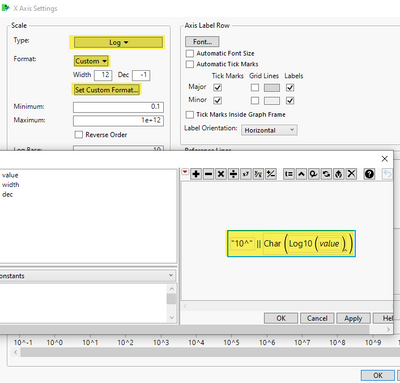
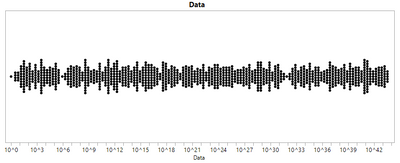
You can have complete control over the format if you specify a custom format for the axis, like this:
Script to recreate graph:
Names default to here(1);

//Make some example data and specify a couple values to check results
dt = New Table( "Example Data",
	Add Rows( 1000 ),
	New Column( "Data",
		Numeric,
		"Continuous",
		Format( "Best", 12 ),
		Formula( Exp( Random Uniform( 1, 100 ) ) ),
		Set Selected
	)
);
dt:Data << Delete Formula;
dt:Data[1] = 1;
dt:Data[2] = 10;

//In graph builder choose the log scale and then specify a custom format
gb = dt << Graph Builder(
	Size( 822, 339 ),
	Show Control Panel( 0 ),
	Variables( X( :Data ) ),
	Elements( Points( X, Legend( 25 ) ) ),
	SendToReport(
		Dispatch(
			{},
			"Data",
			ScaleBox,
			{Scale( "Log" ), Format(
				"Custom",
				Formula( "10^" || Char( Log10( value ) ) ),
				12
			), Min( 1 ), Max( 1e+45 ), Inc( 1 ), Minor Ticks( 0 )}
		)
	)
);
- Mark as New
- Bookmark
- Subscribe
- Mute
- Subscribe to RSS Feed
- Get Direct Link
- Report Inappropriate Content
Re: Having trouble changing the y axis scale
Hi @hannahmcnamara,
You can have complete control over the format if you specify a custom format for the axis, like this:
Script to recreate graph:
Names default to here(1);

//Make some example data and specify a couple values to check results
dt = New Table( "Example Data",
	Add Rows( 1000 ),
	New Column( "Data",
		Numeric,
		"Continuous",
		Format( "Best", 12 ),
		Formula( Exp( Random Uniform( 1, 100 ) ) ),
		Set Selected
	)
);
dt:Data << Delete Formula;
dt:Data[1] = 1;
dt:Data[2] = 10;

//In graph builder choose the log scale and then specify a custom format
gb = dt << Graph Builder(
	Size( 822, 339 ),
	Show Control Panel( 0 ),
	Variables( X( :Data ) ),
	Elements( Points( X, Legend( 25 ) ) ),
	SendToReport(
		Dispatch(
			{},
			"Data",
			ScaleBox,
			{Scale( "Log" ), Format(
				"Custom",
				Formula( "10^" || Char( Log10( value ) ) ),
				12
			), Min( 1 ), Max( 1e+45 ), Inc( 1 ), Minor Ticks( 0 )}
		)
	)
);
- Mark as New
- Bookmark
- Subscribe
- Mute
- Subscribe to RSS Feed
- Get Direct Link
- Report Inappropriate Content
Re: Having trouble changing the y axis scale
Thank you! This worked for me. I was wondering how you get the double line symbol before "Char"?
- Mark as New
- Bookmark
- Subscribe
- Mute
- Subscribe to RSS Feed
- Get Direct Link
- Report Inappropriate Content
Re: Having trouble changing the y axis scale
Good question because it took me a while to figure out how to do that interactively too. If you type the upper bar character '|' in the formula editor you will first get the or symbol, then if you type it again you will get the concatenate operator '||'. Also, if you double click on the formula it will open a text editor where you can type the two upper bars.
Recommended Articles
- © 2026 JMP Statistical Discovery LLC. All Rights Reserved.
- Terms of Use
- Privacy Statement
- Contact Us