cancel
Showing results for 
Show  only  | Search instead for 
Did you mean: 

Discussions

Solve problems, and share tips and tricks with other JMP users.
%3CLINGO-SUB%20id%3D%22lingo-sub-499071%22%20slang%3D%22en-US%22%20mode%3D%22NONE%22%3EGr%C3%A1fico%20de%20tendencia%20semanal%20de%20Cpk%2FPpk%3C%2FLINGO-SUB%3E%3CLINGO-BODY%20id%3D%22lingo-body-499071%22%20slang%3D%22en-US%22%20mode%3D%22NONE%22%3E%3CP%3EHola%20a%20todos%2C%3C%2FP%3E%3CP%3E%26nbsp%3B%3C%2FP%3E%3CP%3E%C2%BFC%C3%B3mo%20podemos%20tener%20un%20gr%C3%A1fico%20para%20la%20tendencia%20semanal%20de%20CPK%2FPPK%3F%20Me%20gustar%C3%ADa%20comparar%20los%20resultados%20entre%20semanas%20para%20ver%20si%20los%20resultados%20mejoran%20o%20empeoran.%3C%2FP%3E%3CP%3E%26nbsp%3B%3C%2FP%3E%3CP%3EEjemplo%20de%20secuencia%20de%20comandos%20ser%C3%ADa%20m%C3%A1s%20%C3%BAtil%20%3A)%3C%2Fimg%3E%3C%2FP%3E%3CP%3E%26nbsp%3B%3C%2FP%3E%3CP%3E%C2%A1Gracias!%3C%2FP%3E%3C%2FLINGO-BODY%3E%3CLINGO-LABS%20id%3D%22lingo-labs-499071%22%20slang%3D%22en-US%22%20mode%3D%22NONE%22%3E%3CLINGO-LABEL%3EAnal%C3%ADtica%3C%2FLINGO-LABEL%3E%3C%2FLINGO-LABS%3E%3CLINGO-SUB%20id%3D%22lingo-sub-499125%22%20slang%3D%22en-US%22%20mode%3D%22NONE%22%3ERe%3A%20Gr%C3%A1fico%20de%20tendencia%20semanal%20de%20Cpk%2FPpk%3C%2FLINGO-SUB%3E%3CLINGO-BODY%20id%3D%22lingo-body-499125%22%20slang%3D%22en-US%22%20mode%3D%22NONE%22%3E%3CP%3ESuponiendo%20que%20tiene%20una%20tabla%20de%20datos%20que%20tiene%20una%20columna%20que%20indica%20la%20semana%20y%20una%20columna%20que%20contiene%20los%20valores%20de%20medici%C3%B3n%2C%20con%20los%20L%C3%ADmites%20de%20especificaci%C3%B3n%20rellenados%20como%20Propiedades%20de%20columna%20para%20la%20columna%20de%20medici%C3%B3n.%3C%2FP%3E%0A%3CP%3E%3CSPAN%20class%3D%22lia-inline-image-display-wrapper%20lia-image-align-inline%22%20image-alt%3D%22txnelson_0-1654204071663.png%22%20style%3D%22width%3A%20400px%3B%22%3E%3CSPAN%20class%3D%22lia-inline-image-display-wrapper%22%20image-alt%3D%22txnelson_0-1654204071663.png%22%20style%3D%22width%3A%20328px%3B%22%3E%3Cspan%20class%3D%22lia-inline-image-display-wrapper%22%20image-alt%3D%22txnelson_0-1654204071663.png%22%20style%3D%22width%3A%20328px%3B%22%3E%3Cimg%20src%3D%22https%3A%2F%2Fcommunity.jmp.com%2Ft5%2Fimage%2Fserverpage%2Fimage-id%2F42926iC527B309FBB1E03A%2Fimage-size%2Fmedium%3Fv%3Dv2%26amp%3Bpx%3D400%22%20role%3D%22button%22%20title%3D%22txnelson_0-1654204071663.png%22%20alt%3D%22txnelson_0-1654204071663.png%22%20%2F%3E%3C%2Fspan%3E%3C%2FSPAN%3E%3C%2FSPAN%3E%3C%2FP%3E%0A%3CP%3E%26nbsp%3B%3C%2FP%3E%0A%3CP%3EIr%3C%2FP%3E%0A%3CP%3EAnalizar%3D%26gt%3BCalidad%20y%20Proceso%3D%26gt%3BCapacidad%20de%20proceso%3C%2FP%3E%0A%3CP%3ERellene%20la%20Y%2C%20Variable%20de%20proceso%20y%20coloque%20la%20columna%20que%20tiene%20el%20valor%20de%20su%20semana%20en%20el%20%C3%A1rea%20de%20selecci%C3%B3n%20%22Por%22%3C%2FP%3E%0A%3CP%3E%3CSPAN%20class%3D%22lia-inline-image-display-wrapper%20lia-image-align-inline%22%20image-alt%3D%22txnelson_1-1654204271077.png%22%20style%3D%22width%3A%20400px%3B%22%3E%3CSPAN%20class%3D%22lia-inline-image-display-wrapper%22%20image-alt%3D%22txnelson_1-1654204271077.png%22%20style%3D%22width%3A%20400px%3B%22%3E%3Cspan%20class%3D%22lia-inline-image-display-wrapper%22%20image-alt%3D%22txnelson_1-1654204271077.png%22%20style%3D%22width%3A%20400px%3B%22%3E%3Cimg%20src%3D%22https%3A%2F%2Fcommunity.jmp.com%2Ft5%2Fimage%2Fserverpage%2Fimage-id%2F42927iDBD15752F006F71C%2Fimage-size%2Fmedium%3Fv%3Dv2%26amp%3Bpx%3D400%22%20role%3D%22button%22%20title%3D%22txnelson_1-1654204271077.png%22%20alt%3D%22txnelson_1-1654204271077.png%22%20%2F%3E%3C%2Fspan%3E%3C%2FSPAN%3E%3C%2FSPAN%3E%3C%2FP%3E%0A%3CP%3EEn%20la%20ventana%20del%20informe%20de%20salida%2C%20mantenga%20presionada%20la%20tecla%20CNTL%20y%20luego%20haga%20clic%20en%20el%20tri%C3%A1ngulo%20rojo%20para%20la%20capacidad%20del%20proceso%20y%20seleccione%3C%2FP%3E%0A%3CP%3EInformes%20resumidos%20%3D%26gt%3B%20Informe%20resumido%20dentro%20de%20Sigma%3C%2FP%3E%0A%3CP%3ESi%20mantiene%20presionada%20la%20tecla%20CNTL%2C%20le%20indicar%C3%A1%20a%20JMP%20que%20cree%20el%20informe%20para%20todas%20las%20semanas.%3C%2FP%3E%0A%3CP%3E%3CSPAN%20class%3D%22lia-inline-image-display-wrapper%20lia-image-align-inline%22%20image-alt%3D%22txnelson_2-1654204549983.png%22%20style%3D%22width%3A%20400px%3B%22%3E%3CSPAN%20class%3D%22lia-inline-image-display-wrapper%22%20image-alt%3D%22txnelson_2-1654204549983.png%22%20style%3D%22width%3A%20400px%3B%22%3E%3Cspan%20class%3D%22lia-inline-image-display-wrapper%22%20image-alt%3D%22txnelson_2-1654204549983.png%22%20style%3D%22width%3A%20400px%3B%22%3E%3Cimg%20src%3D%22https%3A%2F%2Fcommunity.jmp.com%2Ft5%2Fimage%2Fserverpage%2Fimage-id%2F42928iB9808D2A50F08C2E%2Fimage-size%2Fmedium%3Fv%3Dv2%26amp%3Bpx%3D400%22%20role%3D%22button%22%20title%3D%22txnelson_2-1654204549983.png%22%20alt%3D%22txnelson_2-1654204549983.png%22%20%2F%3E%3C%2Fspan%3E%3C%2FSPAN%3E%3C%2FSPAN%3E%3C%2FP%3E%0A%3CP%3EHaga%20clic%20con%20el%20bot%C3%B3n%20derecho%20en%20el%20informe%20de%20resumen%20y%20seleccione%3C%2FP%3E%0A%3CP%3ECrear%20tabla%20de%20datos%20combinados%3C%2FP%3E%0A%3CP%3E%3CSPAN%20class%3D%22lia-inline-image-display-wrapper%20lia-image-align-inline%22%20image-alt%3D%22txnelson_3-1654204660716.png%22%20style%3D%22width%3A%20400px%3B%22%3E%3CSPAN%20class%3D%22lia-inline-image-display-wrapper%22%20image-alt%3D%22txnelson_3-1654204660716.png%22%20style%3D%22width%3A%20400px%3B%22%3E%3Cspan%20class%3D%22lia-inline-image-display-wrapper%22%20image-alt%3D%22txnelson_3-1654204660716.png%22%20style%3D%22width%3A%20400px%3B%22%3E%3Cimg%20src%3D%22https%3A%2F%2Fcommunity.jmp.com%2Ft5%2Fimage%2Fserverpage%2Fimage-id%2F42929iB8482E8142C9F238%2Fimage-size%2Fmedium%3Fv%3Dv2%26amp%3Bpx%3D400%22%20role%3D%22button%22%20title%3D%22txnelson_3-1654204660716.png%22%20alt%3D%22txnelson_3-1654204660716.png%22%20%2F%3E%3C%2Fspan%3E%3C%2FSPAN%3E%3C%2FSPAN%3E%3C%2FP%3E%0A%3CP%3EEsto%20crear%C3%A1%20una%20nueva%20tabla%20de%20datos%20que%20tiene%20toda%20la%20informaci%C3%B3n%20de%20Cp%2FCpk%20para%20cada%20semana%2C%20que%20luego%20puede%20usar%20como%20su%20informe.%3C%2FP%3E%0A%3CP%3E%3CSPAN%20class%3D%22lia-inline-image-display-wrapper%20lia-image-align-inline%22%20image-alt%3D%22txnelson_4-1654204792979.png%22%20style%3D%22width%3A%20400px%3B%22%3E%3CSPAN%20class%3D%22lia-inline-image-display-wrapper%22%20image-alt%3D%22txnelson_4-1654204792979.png%22%20style%3D%22width%3A%20400px%3B%22%3E%3Cspan%20class%3D%22lia-inline-image-display-wrapper%22%20image-alt%3D%22txnelson_4-1654204792979.png%22%20style%3D%22width%3A%20400px%3B%22%3E%3Cimg%20src%3D%22https%3A%2F%2Fcommunity.jmp.com%2Ft5%2Fimage%2Fserverpage%2Fimage-id%2F42930i56F5F42B9DC3F1CB%2Fimage-size%2Fmedium%3Fv%3Dv2%26amp%3Bpx%3D400%22%20role%3D%22button%22%20title%3D%22txnelson_4-1654204792979.png%22%20alt%3D%22txnelson_4-1654204792979.png%22%20%2F%3E%3C%2Fspan%3E%3C%2FSPAN%3E%3C%2FSPAN%3E%3C%2FP%3E%0A%3CP%3E%26nbsp%3B%3C%2FP%3E%0A%3CP%3E%26nbsp%3B%3C%2FP%3E%0A%3CP%3E%26nbsp%3B%3C%2FP%3E%3C%2FLINGO-BODY%3E
Choose Language Hide Translation Bar
XN
XN
Level I

Cpk/Ppk Week over Week trend chart

Hi Everyone,


How can we have a plot for CPK/PPK Week over Week trend? I would like to compare the results across weeks to see if the results improves/worsens? 


I sample script would be best helpful :)


Thanks! 

1 ACCEPTED SOLUTION

Accepted Solutions
txnelson
Super User

Re: Cpk/Ppk Week over Week trend chart

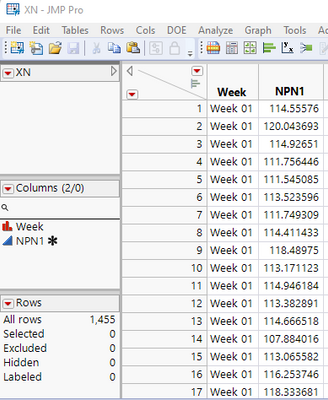
Assuming you have a data table that has a column that indicates the week and a column that contains the measurement values, with the Spec Limits populated as Column Properties for the measurement Column.
txnelson_0-1654204071663.png


Go to

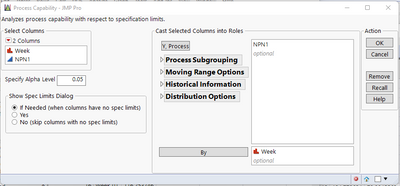
     Analyze=>Quality and Process=>Process Capability

Fill in the Y, Process variable and place the column that has your week value into the "By" selection area
txnelson_1-1654204271077.png

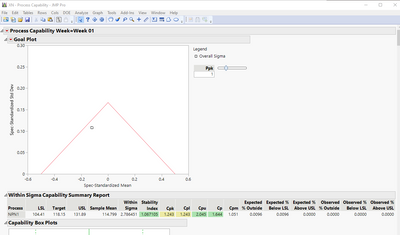
In the output report window, hold down the CNTL key, and then click on the red triangle for the Process Capability, and select

     Summary Reports=>Within Sigma Summary Report

Holding down the CNTL key will signal JMP to create the report for all of the Weeks.
txnelson_2-1654204549983.png

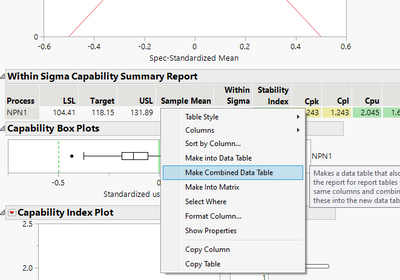
Right click on the summary report, and select

     Create Combined Data Table
txnelson_3-1654204660716.png

This will create a new data table that has all of the Cp/Cpk information for each week, which you can then use as your report
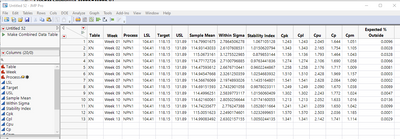
txnelson_4-1654204792979.png


Jim

View solution in original post

1 REPLY 1
txnelson
Super User

Re: Cpk/Ppk Week over Week trend chart

Assuming you have a data table that has a column that indicates the week and a column that contains the measurement values, with the Spec Limits populated as Column Properties for the measurement Column.

txnelson_0-1654204071663.png


Go to

     Analyze=>Quality and Process=>Process Capability

Fill in the Y, Process variable and place the column that has your week value into the "By" selection area

txnelson_1-1654204271077.png

In the output report window, hold down the CNTL key, and then click on the red triangle for the Process Capability, and select

     Summary Reports=>Within Sigma Summary Report

Holding down the CNTL key will signal JMP to create the report for all of the Weeks.

txnelson_2-1654204549983.png

Right click on the summary report, and select

     Create Combined Data Table

txnelson_3-1654204660716.png

This will create a new data table that has all of the Cp/Cpk information for each week, which you can then use as your report

txnelson_4-1654204792979.png


Jim

Recommended Articles