cancel
Showing results for 
Show  only  | Search instead for 
Did you mean: 
  • JMP will suspend normal business operations for our Winter Holiday beginning on Wednesday, Dec. 24, 2025, at 5:00 p.m. ET (2:00 p.m. ET for JMP Accounts Receivable).
    Regular business hours will resume at 9:00 a.m. EST on Friday, Jan. 2, 2026.
  • We’re retiring the File Exchange at the end of this year. The JMP Marketplace is now your destination for add-ins and extensions.

JMPer Cable

A technical blog for JMP users of all levels, full of how-to's, tips and tricks, and detailed information on JMP features
%3CLINGO-SUB%20id%3D%22lingo-sub-42917%22%20slang%3D%22en-US%22%20mode%3D%22NONE%22%20mode%3D%22NONE%22%20mode%3D%22NONE%22%3ESo%20erstellen%20Sie%20ein%20Balkendiagramm%20in%20JMP%3C%2FLINGO-SUB%3E%3CLINGO-BODY%20id%3D%22lingo-body-42917%22%20slang%3D%22en-US%22%20mode%3D%22NONE%22%20mode%3D%22NONE%22%20mode%3D%22NONE%22%3E%3CP%3EHier%20ist%20ein%20animiertes%20GIF%2C%20das%20zeigt%2C%20wie%20man%20ein%20einfaches%20Balkendiagramm%20erstellt%3CA%20href%3D%22https%3A%2F%2Fwww.jmp.com%2Fen_us%2Fsoftware%2Fdata-analysis-software.html%3Futm_campaign%3Daw%26amp%3Butm_source%3Dbl%26amp%3Butm_medium%3Dreferral%22%20target%3D%22_self%22%20rel%3D%22noopener%20noreferrer%22%3E%20JMP%3C%2FA%3E%20mit%20einigen%20kleineren%20Anpassungen.%3CBR%20%2F%3E%3CBR%20%2F%3E%3C%2FP%3E%0A%3CP%3E%3CSPAN%20class%3D%22lia-inline-image-display-wrapper%20lia-image-align-center%22%20image-alt%3D%22BarChart.gif%22%20style%3D%22width%3A%20700px%3B%22%3E%3CSPAN%20class%3D%22lia-inline-image-display-wrapper%22%20image-alt%3D%22BarChart.gif%22%20style%3D%22width%3A%20700px%3B%22%3E%3CSPAN%20class%3D%22lia-inline-image-display-wrapper%22%20image-alt%3D%22BarChart.gif%22%20style%3D%22width%3A%20700px%3B%22%3E%3CSPAN%20class%3D%22lia-inline-image-display-wrapper%22%20image-alt%3D%22BarChart.gif%22%20style%3D%22width%3A%20700px%3B%22%3E%3Cspan%20class%3D%22lia-inline-image-display-wrapper%22%20image-alt%3D%22BarChart.gif%22%20style%3D%22width%3A%20700px%3B%22%3E%3Cimg%20src%3D%22https%3A%2F%2Fcommunity.jmp.com%2Ft5%2Fimage%2Fserverpage%2Fimage-id%2F7098iA59E5C6F16F3C8BA%2Fimage-dimensions%2F700x425%3Fv%3Dv2%22%20width%3D%22700%22%20height%3D%22425%22%20role%3D%22button%22%20title%3D%22BarChart.gif%22%20alt%3D%22BarChart.gif%22%20%2F%3E%3C%2Fspan%3E%3C%2FSPAN%3E%3C%2FSPAN%3E%3C%2FSPAN%3E%3C%2FSPAN%3E%3C%2FP%3E%0A%3CP%3E%26nbsp%3B%3C%2FP%3E%0A%3CP%3E%26nbsp%3B%3C%2FP%3E%0A%3CP%3E%3CSTRONG%3ESchritte%3A%3C%2FSTRONG%3E%3C%2FP%3E%0A%3COL%3E%0A%3CLI%3E%C3%96ffnen%20Sie%20den%20Graph%20Builder.%3C%2FLI%3E%0A%3CLI%3EZiehen%20Sie%20die%20Kategorievariable%20(Typ)%20auf%20die%20X-Achse.%3C%2FLI%3E%0A%3CLI%3EWechseln%20Sie%20den%20Elementtyp%20von%20%E2%80%9EPunkte%E2%80%9C%20zu%20%E2%80%9EBalken%E2%80%9C%2C%20um%20ein%20Balkendiagramm%20nach%20Anzahl%20zu%20erstellen.%3C%2FLI%3E%0A%3CLI%3EZiehen%20Sie%20eine%20Ma%C3%9Fvariable%20(Pferdest%C3%A4rke)%20auf%20die%20Y-Achse.%3C%2FLI%3E%0A%3CLI%3E%C3%84ndern%20Sie%20die%20zusammenfassende%20Statistik%20nach%20Bedarf.%3C%2FLI%3E%0A%3CLI%3EF%C3%BCgen%20Sie%20bei%20Bedarf%20eine%20Beschriftung%20hinzu.%3C%2FLI%3E%0A%3CLI%3EKlicken%20Sie%20auf%20%E2%80%9EFertig%E2%80%9C%20und%20schlie%C3%9Fen%20Sie%20das%20Bedienfeld.%3C%2FLI%3E%0A%3CLI%3EKlicken%20Sie%20mit%20der%20rechten%20Maustaste%20auf%20die%20Legende%2C%20um%20die%20Farbe%20wie%20gew%C3%BCnscht%20zu%20%C3%A4ndern.%3C%2FLI%3E%0A%3C%2FOL%3E%3C%2FLINGO-BODY%3E%3CLINGO-TEASER%20id%3D%22lingo-teaser-42917%22%20slang%3D%22en-US%22%3E%3CP%3E%26nbsp%3B%3C%2FP%3E%0A%3CP%3E%3CSPAN%20class%3D%22lia-inline-image-display-wrapper%20lia-image-align-center%22%20image-alt%3D%22BarChartFinal.png%22%20style%3D%22width%3A%20400px%3B%22%3E%3CSPAN%20class%3D%22lia-inline-image-display-wrapper%22%20image-alt%3D%22BarChartFinal.png%22%20style%3D%22width%3A%20400px%3B%22%3E%3CSPAN%20class%3D%22lia-inline-image-display-wrapper%22%20image-alt%3D%22BarChartFinal.png%22%20style%3D%22width%3A%20400px%3B%22%3E%3CSPAN%20class%3D%22lia-inline-image-display-wrapper%22%20image-alt%3D%22BarChartFinal.png%22%20style%3D%22width%3A%20400px%3B%22%3E%3Cspan%20class%3D%22lia-inline-image-display-wrapper%22%20image-alt%3D%22BarChartFinal.png%22%20style%3D%22width%3A%20400px%3B%22%3E%3Cimg%20src%3D%22https%3A%2F%2Fcommunity.jmp.com%2Ft5%2Fimage%2Fserverpage%2Fimage-id%2F7099i3847F8964B4ED353%2Fimage-size%2Fmedium%3Fv%3Dv2%26amp%3Bpx%3D400%22%20role%3D%22button%22%20title%3D%22BarChartFinal.png%22%20alt%3D%22BarChartFinal.png%22%20%2F%3E%3C%2Fspan%3E%3C%2FSPAN%3E%3C%2FSPAN%3E%3C%2FSPAN%3E%3C%2FSPAN%3E%3C%2FP%3E%0A%3CP%3E%26nbsp%3B%3C%2FP%3E%0A%3CP%3E%3CSPAN%3ESehen%20Sie%20sich%20ein%20animiertes%20GIF%20an%2C%20das%20zeigt%2C%20wie%20Sie%20mit%20einigen%20kleineren%20Anpassungen%20ein%20einfaches%20Balkendiagramm%20in%20JMP%20erstellen.%3C%2FSPAN%3E%3C%2FP%3E%0A%3CP%3E%26nbsp%3B%3C%2FP%3E%3C%2FLINGO-TEASER%3E
Choose Language Hide Translation Bar
XanGregg
Staff
How to make a bar chart in JMP

Here's an animated GIF showing how to make a basic bar chart in JMP with some minor customizations.
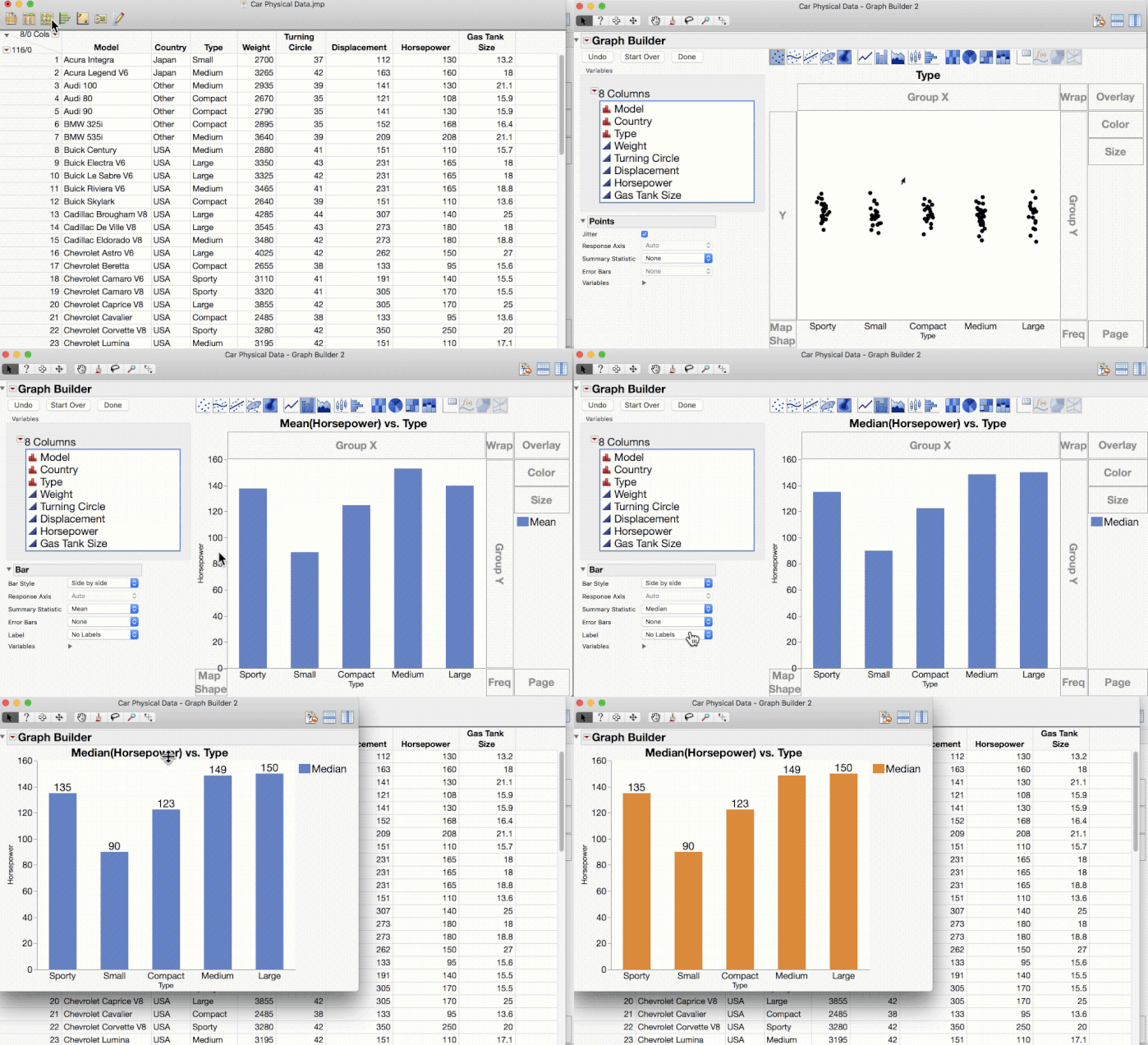
BarChart.gif


Steps:

  1. Open Graph Builder.
  2. Drag category variable (Type) to the X axis.
  3. Switch element type from Points to Bar, producing a bar chart by count.
  4. Drag a measure variable (Horsepower) to the Y axis.
  5. Change summary statistic as desired.
  6. Add label if desired.
  7. Click Done, closing the control panel.
  8. Right-click on legend to change color as desired.
Last Modified: Sep 5, 2017 10:33 AM