- JMP will suspend normal business operations for our Winter Holiday beginning on Wednesday, Dec. 24, 2025, at 5:00 p.m. ET (2:00 p.m. ET for JMP Accounts Receivable).
Regular business hours will resume at 9:00 a.m. EST on Friday, Jan. 2, 2026. - We’re retiring the File Exchange at the end of this year. The JMP Marketplace is now your destination for add-ins and extensions.
JMPer Cable
A technical blog for JMP users of all levels, full of how-to's, tips and tricks, and detailed information on JMP features- JMP User Community
- :
- Blogs
- :
- JMPer Cable
- :
- Hover labels: Understanding the extensions framework
- Subscribe to RSS Feed
- Mark as New
- Mark as Read
- Bookmark
- Subscribe
- Printer Friendly Page
- Report Inappropriate Content


In a previous post, you learned about graphlet presets and the Paste Graphlet command. We showed you how they support context-aware, clickable visualization thumbnails in hover labels. These commands implement the "porcelain" aspect of the JMP 15 hover labels extensions feature, providing a user-friendly interface that doesn’t require any coding skills.
In this post, you’ll get a better look at the underlying "plumbing" layer that powers the porcelain layer. This layer is designed as a framework that can also be accessed directly by the user, allowing the implementation of requirements that aren’t covered by the porcelain features.
The hover label extensions framework
A framework is a combination of basic services and extension points. From the point of view of the framework, presets and custom graphlets are identical, so the only difference is that JMP provides the preset definitions as a convenience to users.
At the framework level, all graphlets – including presets – use the Set Graphlet command, but each preset initializes the framework with a different set of arguments. These arguments include JSL script fragments, later used as callbacks. The framework evaluates these callbacks in response to user interactions, such as hovering over a visual element or the clicking on a hover label thumbnail.
Callback evaluation happens inside an Hover Label Execution Context (HLEC), which captures contextual information about the underlying visual element. Callbacks can take advantage of this contextual information to implement dynamic behavior. Take, for example, the Histogram preset. After looking at the context to find the baseline visualization Y role assignment, it then reuses that column for its own Y role assignment.
Other entry points to the hover label extensions framework include Paste Graphlet (a wrapper for Set Graphlet), Set Textlet, and Set Gridlet. In this post, we’ll use the Set Graphlet command as an example, but the same principles apply to the others as well.
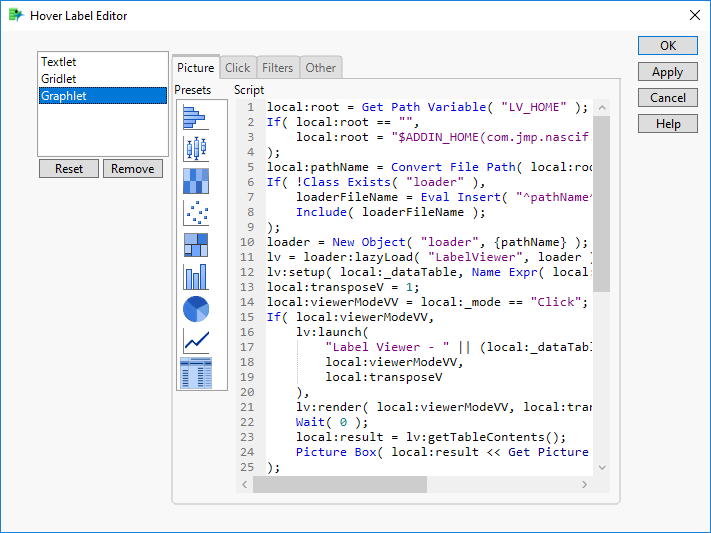
The best way to create custom graphlets is to use the Hover Label Editor dialogue. You can also use the Hover Label Editor to inspect how a graphlet preset is defined. Preset definitions provide great examples of how to use the framework capabilities.
Graphlet callbacks
The Hover Label Editor Graphlet panel exposes a few script arguments, the most important ones being Picture and Click. The framework will call them at runtime in response to the following events:
- Hovering: When the user positions the mouse pointer over a visual element for a short period of time, like when the user pauses the mouse over a bar in a bar chart, the Picture script fragment is executed. Doing so results in producing either a PictureBox (a display box that contains a graphics picture object) or a display tree that contains a PictureBox. If the script calls for the execution of a Platform, it will be launched inside an invisible window. The framework will then traverse the display tree of the result and then capture and scale down a screenshot of the first PictureBox encountered. That image becomes the thumbnail displayed inside the hover label.
- Clicking: When the user left-clicks on the hover label graphlet thumbnail, the optional Click argument is triggered. If it’s not present then the Picture script is reused, but the execution of a contained Platform results in a visible window. This is how presets launch their visualizations.
The Click callback can execute arbitrary JSL scripts. For example, it can open web pages, make REST calls, load files from disk and update tables. It allows integration with external data, systems, and other advanced scenarios.
As mentioned before, the evaluation of callbacks happens inside execution contexts, which have two components:
- A Local Data Filter that subsets the rows to match the visual element data.
- A Local Namespace that captures the visual element attributes.
Local Data Filter
Each visual element in a graph corresponds to a subset of the original data. For example, let’s look at a bar chart showing the average of students’ height by sex. The first bar corresponds to the female students; the second one is for the males. This implicit grouping happens during the definition of a visualization.
The framework makes grouping explicit through an equivalent Local Data Filter (LDF), which is used to restrict the data table rows visible during the execution of the callback. The LDF definition is based on:
- The baseline visualization graph type.
- The columns assigned to its grouping roles (X, Group X/Y, Overlay, etc.).
- The values associated with these columns.
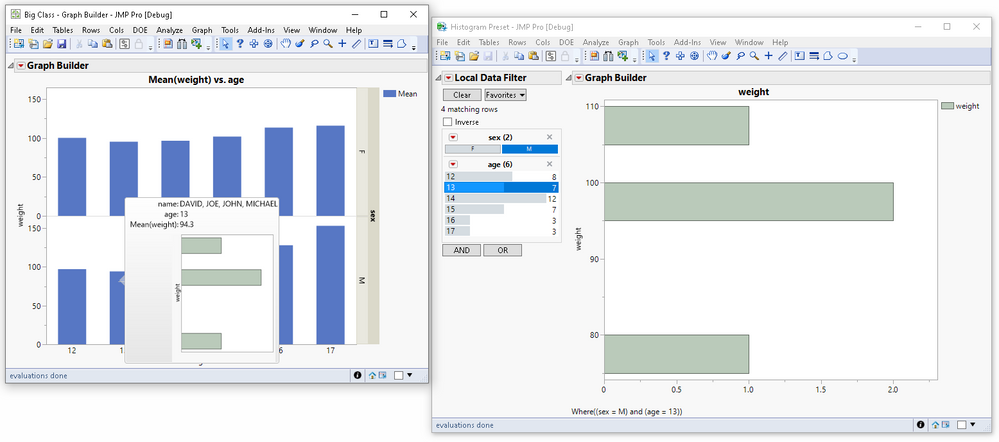
In the example below, the baseline graph is a small multiples bar chart. The framework maps it to an LDF based on its two grouping variables:
- The one assigned to the X role (age).
- The one assigned to Group Y (sex).
Note how the hovered bar and the panel that contains the chart generate the filter values.
Additional control over column inclusion is possible through the Skip Filters attributes. While it is rarely necessary, it can be useful if you want to display more data than is usually associated with the underlying visual element.
The core mechanism behind drill-downs is the ability to launch Platforms with context-based LDFs in response to user interactions.
Local namespace
The second component of the HLEC is a local namespace. Its main purpose is to expose context information to the graphlet, which allows the graphlet to exhibit dynamic, context-aware behavior. The framework wraps each graphlet callback in a local namespace before executing it.
The graphlet local namespace is populated by the framework with local variables. These context variables follow a naming convention, meaning their names must always start with an underscore. They capture information from different sources associated with the current execution context:
- Hovered visual element type (bar, marker, etc.).
- Index of the first row of the associated data.
- Number of observations in the associated data.
- Hover label grid entries (one variable for each entry).
- Type of callback (Picture, Click, etc.).
- LDF where clause.
- Drill-down levels count.
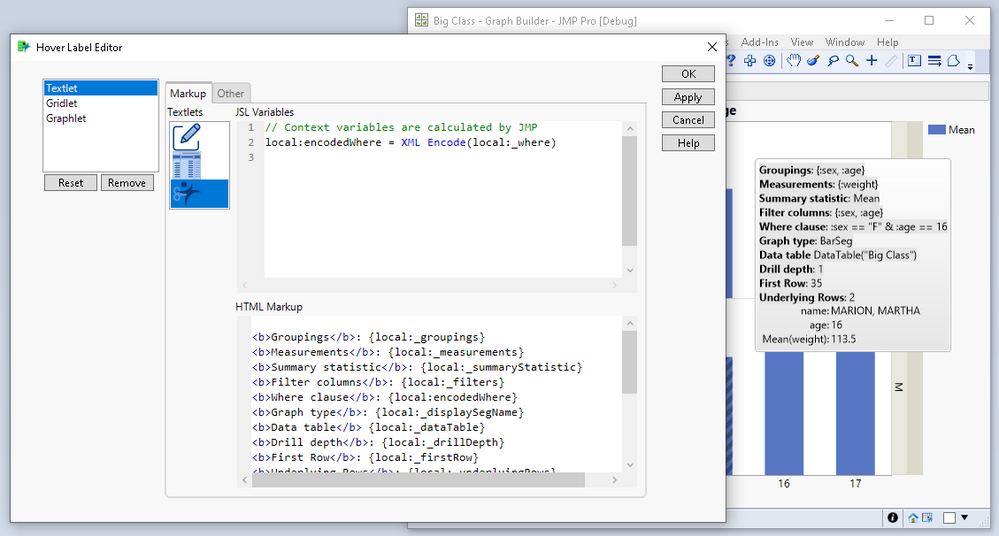
An easy way to check a new graphlet’s values when debugging it is to use the Textlet context preset, which adds the values as text to the hover label itself, as seen below:
Putting it all together
The following diagram shows how the different parts of the framework come together in the execution of a graphlet preset. In a custom graphlet, the user provides the graph template using the Picture script argument.
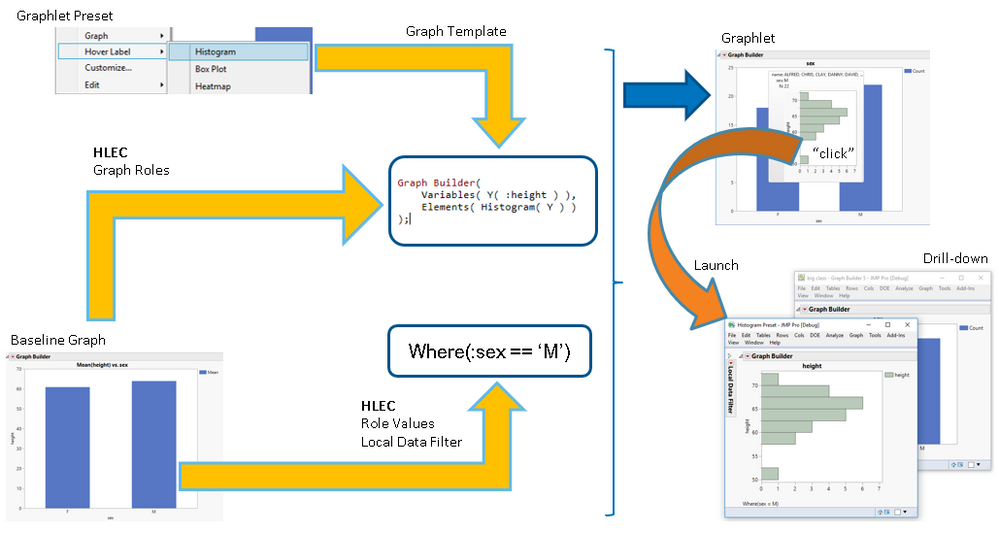
First, the framework captures a graph template and other arguments at configuration time. Later, in response to user interactions, it creates the filter and namespace that are part of the HLEC. It instantiates the template inside the HLEC to generate the hover label thumbnail image. If the user clicks on that image, it launches the associated platform on its own window.
A custom graphlet example
Now that you understand the mechanics, here’s an example of how accessing the underlying graphlet framework helped a user solve a real problem.
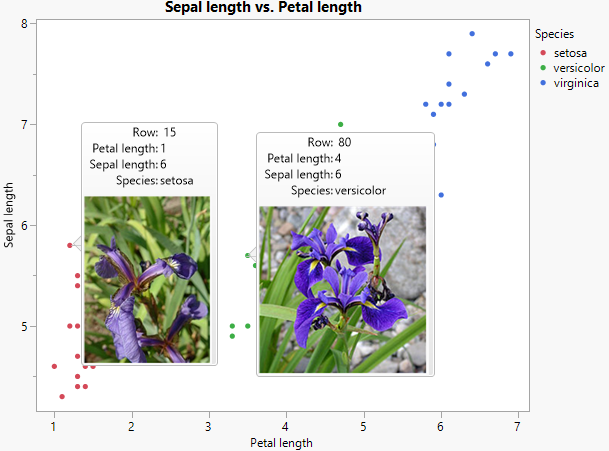
Not too long ago, a user asked a question here in the JMP User Community. She had a folder with image files (specifically, high-resolution pictures) of her experiments. She wanted to display the image associated with an experiment in the hover label, but the images were too large to store in her JMP tables. Was it possible to load them from the disk on demand?
There were a few obstacles to making this happen. It didn't align with any of the existing presets, it wasn't a good fit for Paste Graphlet since it required dynamic behavior, and the filename for the displayed image had to calculated on demand.
The solution was to create a custom graphlet by extending the framework with callbacks based on JSL file primitives.
The principles of that solution are shown below in an example based on the Iris dataset. The critical part of this example is showing how the image can be loaded directly from the disk. The filename is based on one of the HLEC local namespace variables. As a bonus, you can see how to open a related web page in response to the user clicking on the displayed image.
Set Graphlet(
	// Value from hover label grid entry (labeled column)
	Picture(
		Picture Box( Open( img_dir || local:_Species || ".jpg", "jpg" ) )
	),
	// Value from data table using column reference for visualized row
	Click(
		Web( "https://en.wikipedia.org/wiki/Iris_" || Column( "Species" )[local:_firstRow] )
	)
)
Conclusion
While we hope that you are always able to use presets and paste graphlets to implement the majority of your requirements, we realize that’s not always possible. By using the framework, you can create your own custom hover label extensions whenever you have a special need.
If you have questions, want to share your creations, or just see what other users are coming up with, please join us here in the JMP User Community. We look forward to seeing your next cool graphlet!
You must be a registered user to add a comment. If you've already registered, sign in. Otherwise, register and sign in.
- © 2026 JMP Statistical Discovery LLC. All Rights Reserved.
- Terms of Use
- Privacy Statement
- Contact Us