- Don’t miss your chance to experience Discovery Summit Europe at our best available rate! Early bird registration through 31 Oct.
- Graph Builder Toolbar streamlines interactive graphing. Creates shortcuts on Report and GraphBuilder Helpers toolbars. Download and install the extension.
- Subscribe to RSS Feed
- Mark Topic as New
- Mark Topic as Read
- Float this Topic for Current User
- Bookmark
- Subscribe
- Mute
- Printer Friendly Page
Discussions
Solve problems, and share tips and tricks with other JMP users.- User Community
- :
- Discussions
- :
- Re: enable/disable toolbar icons

- Mark as New
- Bookmark
- Subscribe
- Mute
- Subscribe to RSS Feed
- Get Direct Link
- Report Inappropriate Content
enable/disable toolbar icons
Toolbar icons appear gray if the window has the wrong type:


how can I control this behavior for my own toolbars?
Accepted Solutions
- Mark as New
- Bookmark
- Subscribe
- Mute
- Subscribe to RSS Feed
- Get Direct Link
- Report Inappropriate Content
Re: enable/disable toolbar icons
If a Toolbar Icon is linked to a Built-In command, it automatically gets the enable/disable functionality related to the respective command.
... even if the user chooses his own icon:
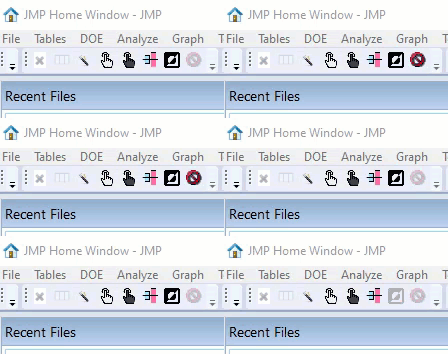
The easiest way to get a "dynamic" Icon into a user-defined toolbar:
Got to View/Cutomize/Menus and Toolbars, and rightClick copy the original function and paste it into the user-defined Toolbar.
To get such Shortcut Icons into user-defined Add-Ins, one has to follow these steps shared by @Jeff_Perkinson
Alternatively, one can edit the addin.jmpcust file manually.
The syntax is type="builtin":
<jm:command>
 <jm:name>TEXT TO COLUMNS</jm:name>
  <jm:caption>Text to Columns…</jm:caption>
  <jm:action type="builtin">COLS:UTILITIES:TEXT TO COLUMNS</jm:action>
 </jm:command>
- Mark as New
- Bookmark
- Subscribe
- Mute
- Subscribe to RSS Feed
- Get Direct Link
- Report Inappropriate Content
Re: enable/disable toolbar icons
- Mark as New
- Bookmark
- Subscribe
- Mute
- Subscribe to RSS Feed
- Get Direct Link
- Report Inappropriate Content
Re: enable/disable toolbar icons
If a Toolbar Icon is linked to a Built-In command, it automatically gets the enable/disable functionality related to the respective command.
... even if the user chooses his own icon:
The easiest way to get a "dynamic" Icon into a user-defined toolbar:
Got to View/Cutomize/Menus and Toolbars, and rightClick copy the original function and paste it into the user-defined Toolbar.
To get such Shortcut Icons into user-defined Add-Ins, one has to follow these steps shared by @Jeff_Perkinson
Alternatively, one can edit the addin.jmpcust file manually.
The syntax is type="builtin":
<jm:command>
 <jm:name>TEXT TO COLUMNS</jm:name>
  <jm:caption>Text to Columns…</jm:caption>
  <jm:action type="builtin">COLS:UTILITIES:TEXT TO COLUMNS</jm:action>
 </jm:command>
Recommended Articles
- © 2026 JMP Statistical Discovery LLC. All Rights Reserved.
- Terms of Use
- Privacy Statement
- Contact Us