- Don’t miss your chance to experience Discovery Summit Europe at our best available rate! Early bird registration through 31 Oct.
- Graph Builder Toolbar streamlines interactive graphing. Creates shortcuts on Report and GraphBuilder Helpers toolbars. Download and install the extension.
- Subscribe to RSS Feed
- Mark Topic as New
- Mark Topic as Read
- Float this Topic for Current User
- Bookmark
- Subscribe
- Mute
- Printer Friendly Page
Discussions
Solve problems, and share tips and tricks with other JMP users.- User Community
- :
- Discussions
- :
- Re: Open part of CSV with filter

- Mark as New
- Bookmark
- Subscribe
- Mute
- Subscribe to RSS Feed
- Get Direct Link
- Report Inappropriate Content
Open part of CSV with filter
Hi,
What is the way to open a filtered part of CSV?
I have 300 Mb CSV but need only 10 Mb from it.
Please provide an example for Big Class.csv where height > 50 and Age = 15;
Thanks.
Accepted Solutions


- Mark as New
- Bookmark
- Subscribe
- Mute
- Subscribe to RSS Feed
- Get Direct Link
- Report Inappropriate Content
Re: Open part of CSV with filter
You can do it with an ODBC driver. It is complicated, and I'm not sure what kind of performance you can expect. The JSL first, then the complicated setup steps. I made big class.csv in the samples\import directory; the bigclass.txt did not work on my first try, probably because of the extension or not having commas. There might be a way to fix that in the connection string.
New SQL Query(
	Connection(
		"ODBC:DSN=CSV;DBQ=C:\SPACE\SAS\JMP\15\SAMPLES\IMPORT DATA;DefaultDir=C:\SPACE\SAS\JMP\15\SAMPLES\IMPORT DATA;DriverId=27;FIL=text;MaxBufferSize=2048;PageTimeout=5;"
	),
	QueryName( "Big Class.csv" ),
	Select(
		Column( "name", "t1" ),
		Column( "age", "t1" ),
		Column( "sex", "t1" ),
		Column( "height", "t1" ),
		Column( "weight", "t1" )
	),
	From( Table( "Big Class.csv", Alias( "t1" ) ) ),
	Where(
		Custom( "t1.age=15 and t1.height>50", UI( Custom( Base( "Continuous" ) ) ) )
	)
) << Run
You'll have to set up a DSN on your computer. You probably don't have the driver. Download and install.
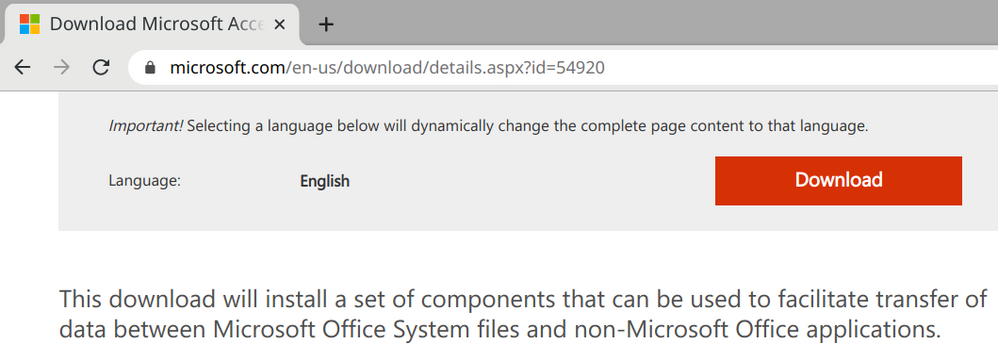
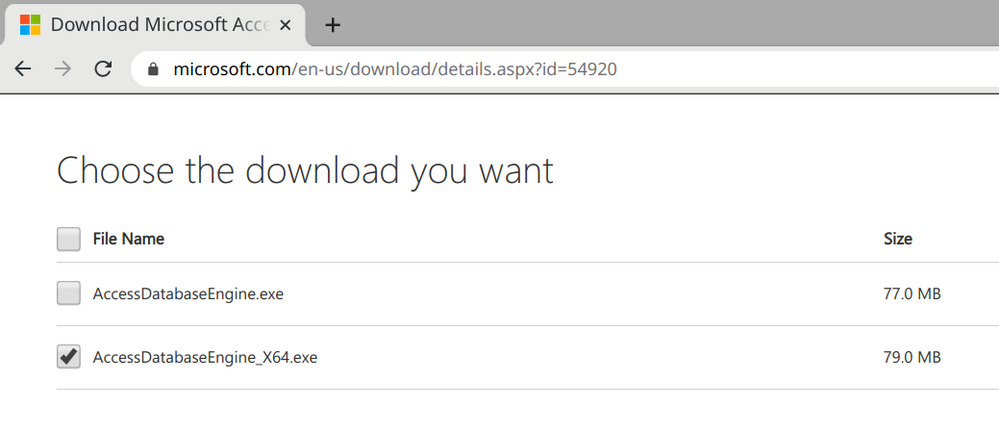
I found those by searching for the Microsoft Access ODBC CSV Driver
Install the 64 bit exe:
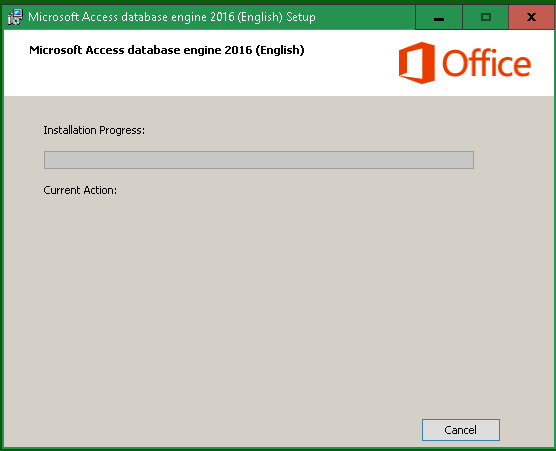
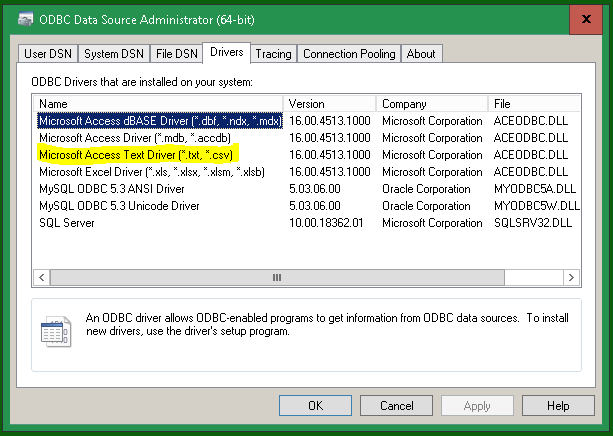
Set it up. Type ODBC in the windows start menu to find the 64 bit admin tool.
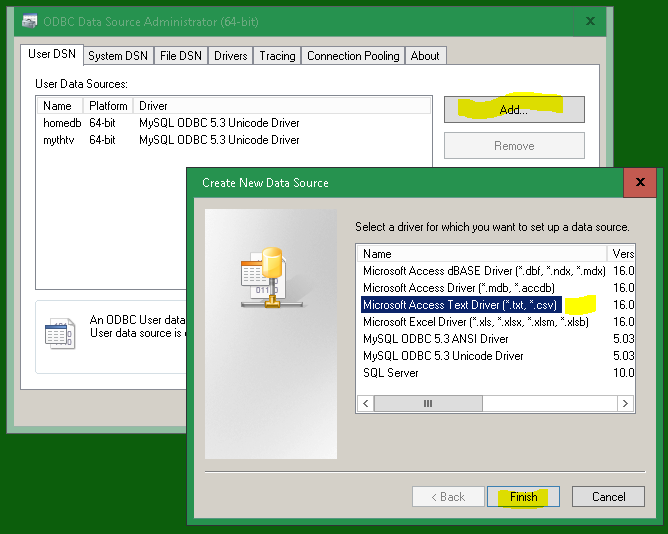
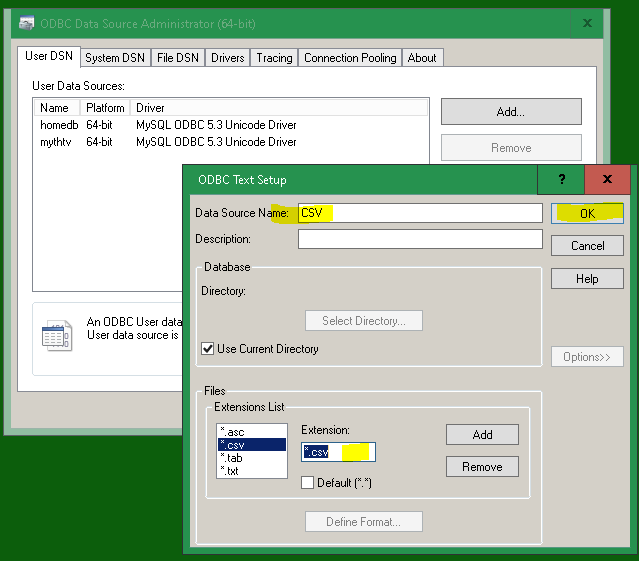
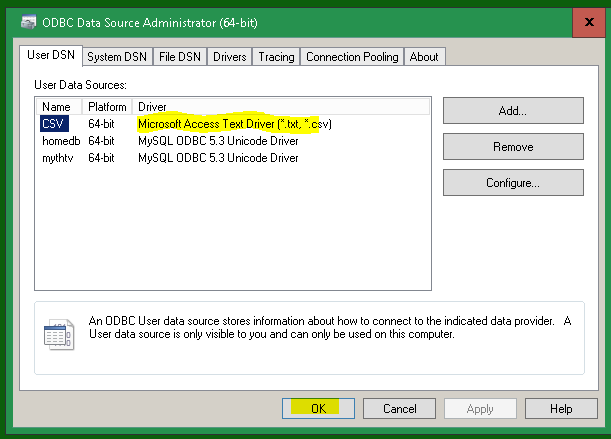
Use it in JMP. I stumbled about, some of the pictures may be less correct; the good stuff is at the end. File->Database is the starting point.
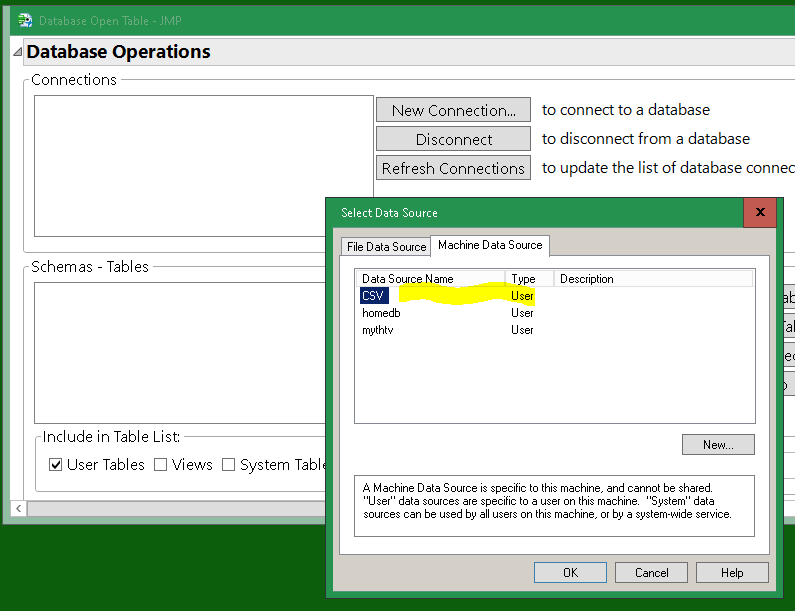
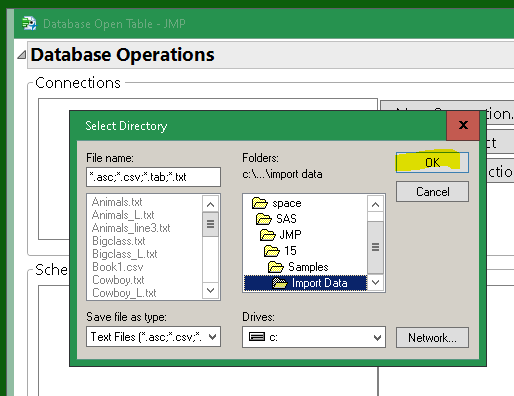
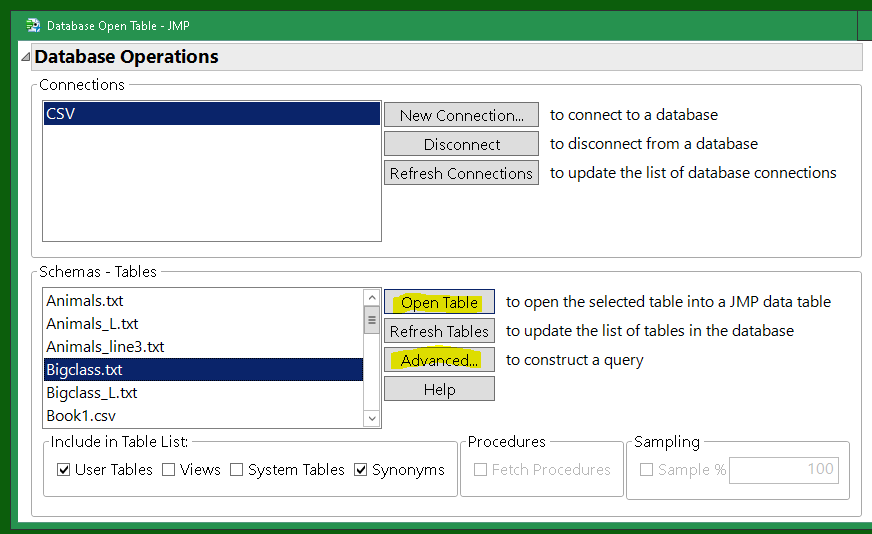
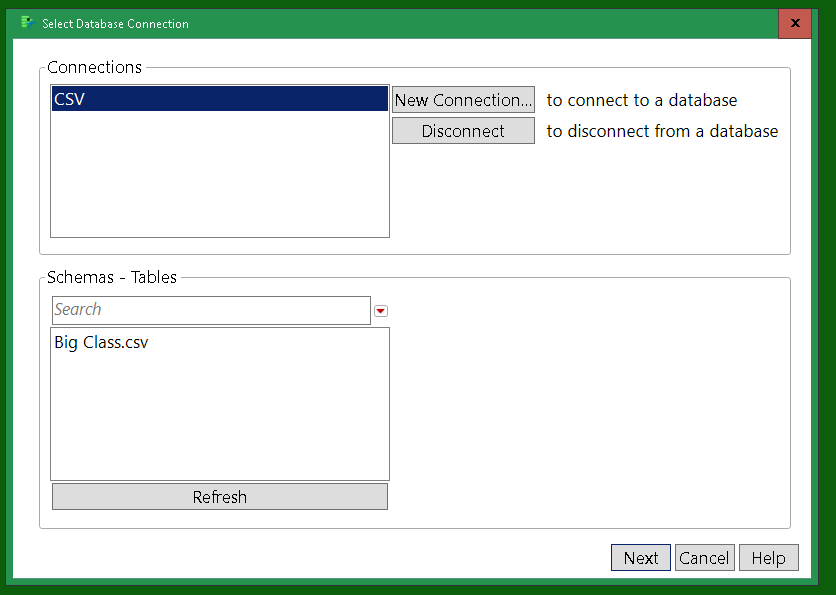
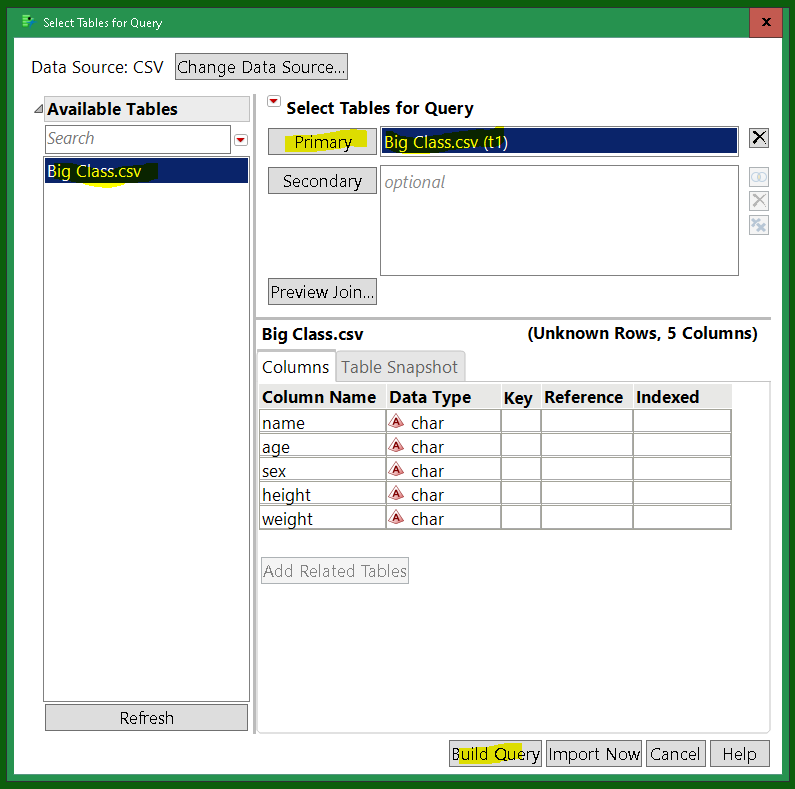
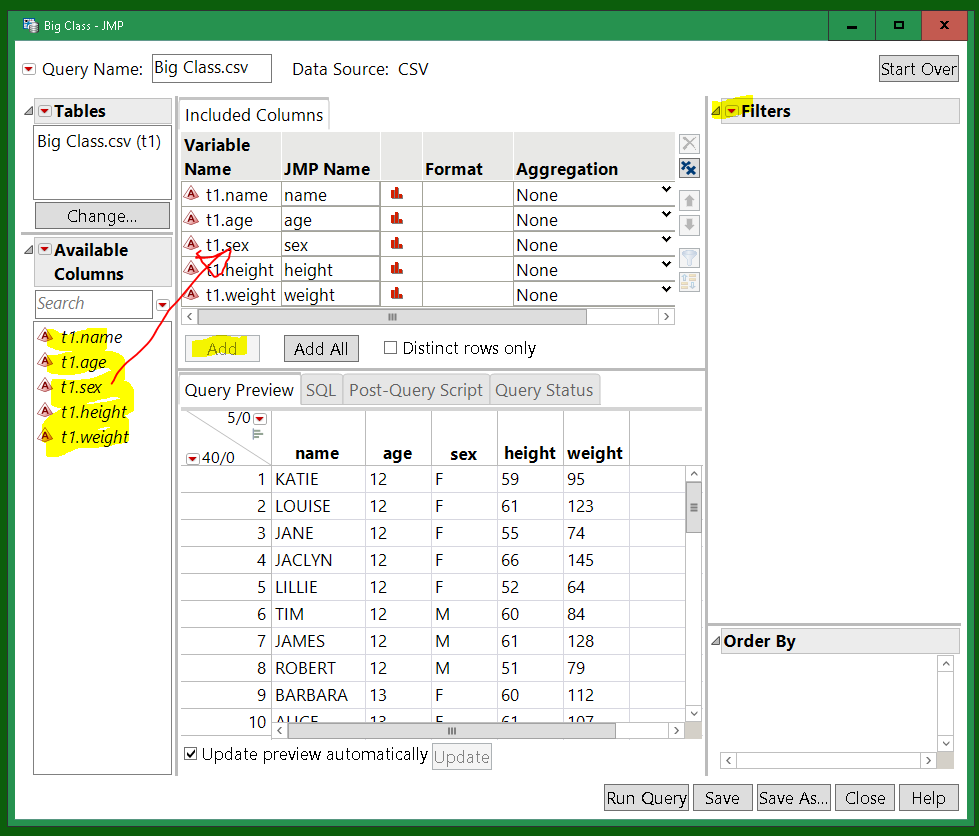
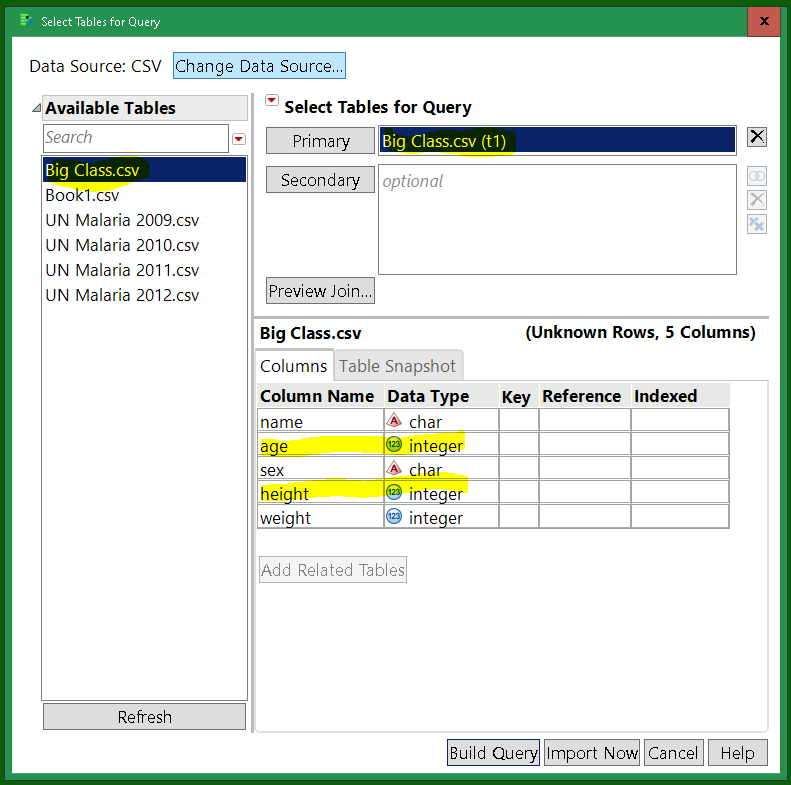
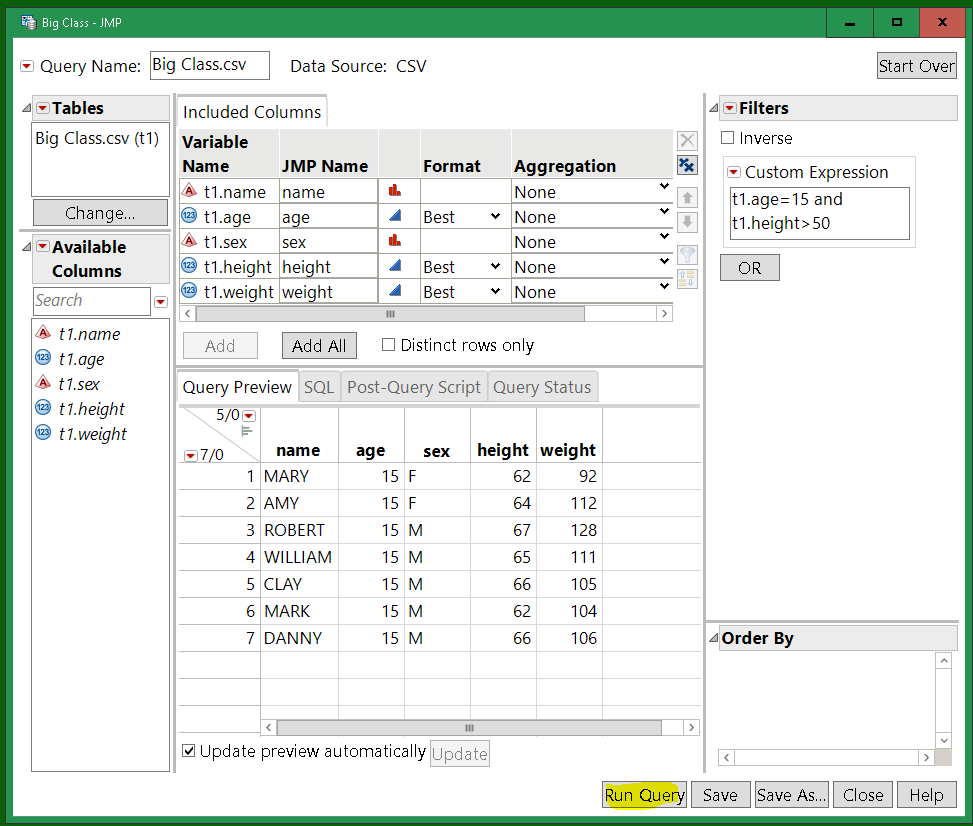
I think the file needs a CSV extension, but I didn't do enough experiments. With a CSV extension, and using commas, and NOT using quotation marks around numbers, it works. It looks like quotation marks will import strings, but there might be a way to fix that too.

- Mark as New
- Bookmark
- Subscribe
- Mute
- Subscribe to RSS Feed
- Get Direct Link
- Report Inappropriate Content
Re: Open part of CSV with filter
I am not aware of any way to pass to the Excel Input Options a Where Clause. Below is a script that effectively does that, but it first has to read in the entire data table
dt = Open(
	<"Path to your.csv">,
	columns(
		New Column( "name", Character, "Nominal" ),
		New Column( "age", Numeric, "Continuous", Format( "Best", 12 ) ),
		New Column( "sex", Character, "Nominal" ),
		New Column( "height", Numeric, "Continuous", Format( "Best", 12 ) ),
		New Column( "weight", Numeric, "Continuous", Format( "Best", 12 ) )
	),
	Import Settings(
		End Of Line( CRLF, CR, LF ),
		End Of Field( Comma, CSV( 1 ) ),
		Strip Quotes( 0 ),
		Use Apostrophe as Quotation Mark( 0 ),
		Use Regional Settings( 0 ),
		Scan Whole File( 1 ),
		Treat empty columns as numeric( 0 ),
		CompressNumericColumns( 0 ),
		CompressCharacterColumns( 0 ),
		CompressAllowListCheck( 0 ),
		Labels( 1 ),
		Column Names Start( 1 ),
		Data Starts( 2 ),
		Lines To Read( "All" ),
		Year Rule( "20xx" )),
	invisible
);
dt << select where(:height > 50 & :age == 15 );
dt2 = dt << subset( selected rows(1), selected columns(0) );
close(dt, nosave);- Mark as New
- Bookmark
- Subscribe
- Mute
- Subscribe to RSS Feed
- Get Direct Link
- Report Inappropriate Content
Re: Open part of CSV with filter
You can do it with an ODBC driver. It is complicated, and I'm not sure what kind of performance you can expect. The JSL first, then the complicated setup steps. I made big class.csv in the samples\import directory; the bigclass.txt did not work on my first try, probably because of the extension or not having commas. There might be a way to fix that in the connection string.
New SQL Query(
	Connection(
		"ODBC:DSN=CSV;DBQ=C:\SPACE\SAS\JMP\15\SAMPLES\IMPORT DATA;DefaultDir=C:\SPACE\SAS\JMP\15\SAMPLES\IMPORT DATA;DriverId=27;FIL=text;MaxBufferSize=2048;PageTimeout=5;"
	),
	QueryName( "Big Class.csv" ),
	Select(
		Column( "name", "t1" ),
		Column( "age", "t1" ),
		Column( "sex", "t1" ),
		Column( "height", "t1" ),
		Column( "weight", "t1" )
	),
	From( Table( "Big Class.csv", Alias( "t1" ) ) ),
	Where(
		Custom( "t1.age=15 and t1.height>50", UI( Custom( Base( "Continuous" ) ) ) )
	)
) << Run
You'll have to set up a DSN on your computer. You probably don't have the driver. Download and install.
I found those by searching for the Microsoft Access ODBC CSV Driver
Install the 64 bit exe:
Set it up. Type ODBC in the windows start menu to find the 64 bit admin tool.
Use it in JMP. I stumbled about, some of the pictures may be less correct; the good stuff is at the end. File->Database is the starting point.
I think the file needs a CSV extension, but I didn't do enough experiments. With a CSV extension, and using commas, and NOT using quotation marks around numbers, it works. It looks like quotation marks will import strings, but there might be a way to fix that too.
- Mark as New
- Bookmark
- Subscribe
- Mute
- Subscribe to RSS Feed
- Get Direct Link
- Report Inappropriate Content
Re: Open part of CSV with filter
Recommended Articles
- © 2026 JMP Statistical Discovery LLC. All Rights Reserved.
- Terms of Use
- Privacy Statement
- Contact Us