- Don’t miss your chance to experience Discovery Summit Europe at our best available rate! Early bird registration through 31 Oct.
- Graph Builder Toolbar streamlines interactive graphing. Creates shortcuts on Report and GraphBuilder Helpers toolbars. Download and install the extension.
- Subscribe to RSS Feed
- Mark Topic as New
- Mark Topic as Read
- Float this Topic for Current User
- Bookmark
- Subscribe
- Mute
- Printer Friendly Page
Discussions
Solve problems, and share tips and tricks with other JMP users.- User Community
- :
- Discussions
- :
- Re: Displaying data values from Graph Builder

- Mark as New
- Bookmark
- Subscribe
- Mute
- Subscribe to RSS Feed
- Get Direct Link
- Report Inappropriate Content
Displaying data values from Graph Builder
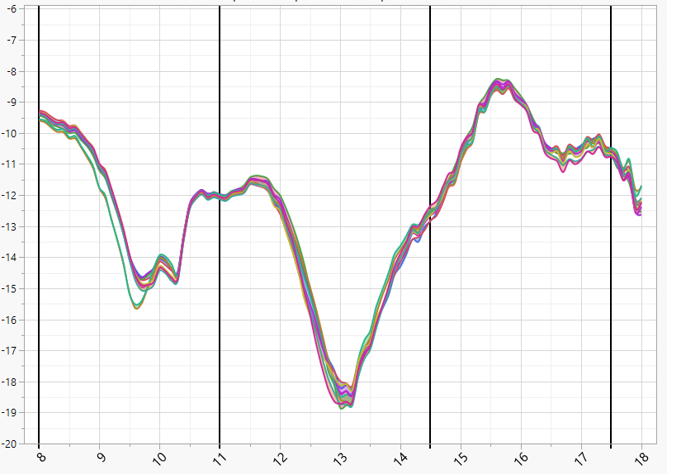
I am looking for some help in extracting data values at a specific point on a -x-y plot and putting them into a table to add to a presentation. I have attached a picture of a plot and if you notice there are 4 Ref Lines ( 8, 11, 14.5, and 17.5). I would like to get get the exact value for each device at that specific point and put them into a table. I have tried Summary & Tabulate but I can't seem to figure this one. This will go inside a script that loops through each test condition (96) and plots the data.
Thanks in advance
d
Accepted Solutions


 Community Manager
- Mark as New
- Bookmark
- Subscribe
- Mute
- Subscribe to RSS Feed
- Get Direct Link
- Report Inappropriate Content
Re: Displaying data values from Graph Builder
 Community Manager
- Mark as New
- Bookmark
- Subscribe
- Mute
- Subscribe to RSS Feed
- Get Direct Link
- Report Inappropriate Content
Re: Displaying data values from Graph Builder
I can't tell for sure, but it looks like you are displaying fitted splines in Graph Builder.
If that's the case your best bet is to use Fit Y by X to fit the splines and then save the prediction formula. You can then use that formula to get predicted values for each of your reference line values.
- Mark as New
- Bookmark
- Subscribe
- Mute
- Subscribe to RSS Feed
- Get Direct Link
- Report Inappropriate Content
Re: Displaying data values from Graph Builder
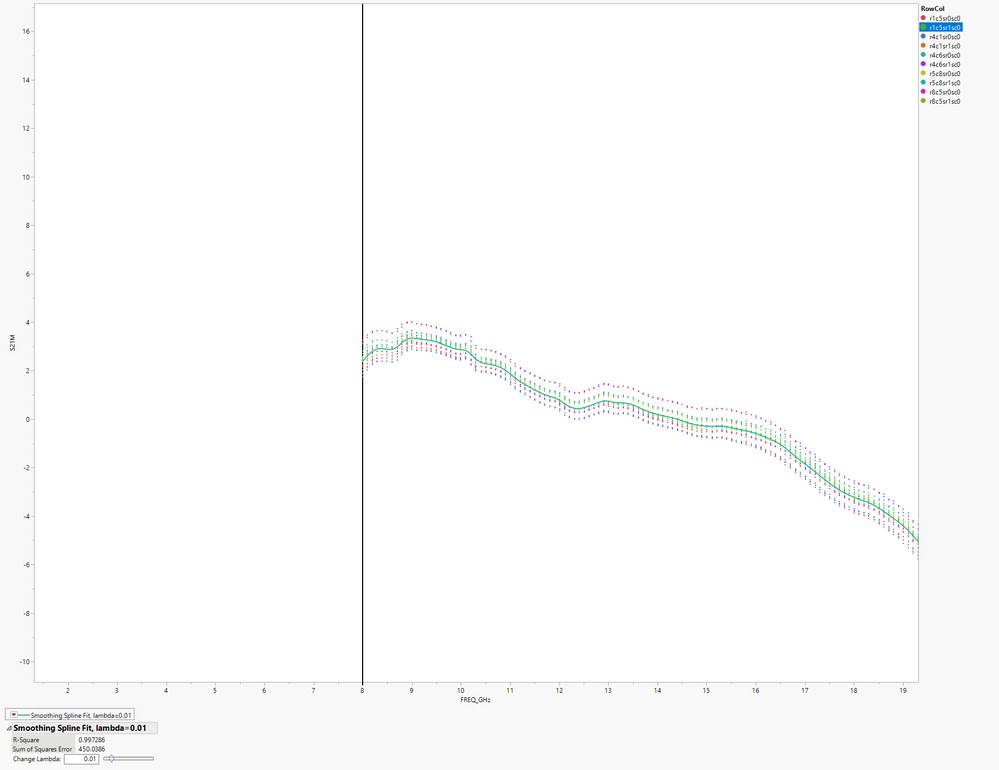
I see what you mean, thanks. Question? I don't want to plot any mean values which anything with "Fit" will do apparently, I want to connect the points for each of the 10 devices of actually how it looks with the points only. How does one accomplish that?


- Mark as New
- Bookmark
- Subscribe
- Mute
- Subscribe to RSS Feed
- Get Direct Link
- Report Inappropriate Content
Re: Displaying data values from Graph Builder
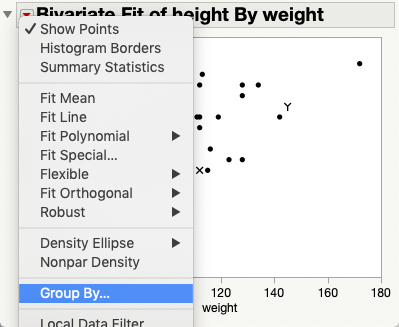
There are many ways to connect the data points with a line. One way is in Fit Y by X, from the red popup choose Flexible > Fit Each Value.
- Mark as New
- Bookmark
- Subscribe
- Mute
- Subscribe to RSS Feed
- Get Direct Link
- Report Inappropriate Content
Re: Displaying data values from Graph Builder
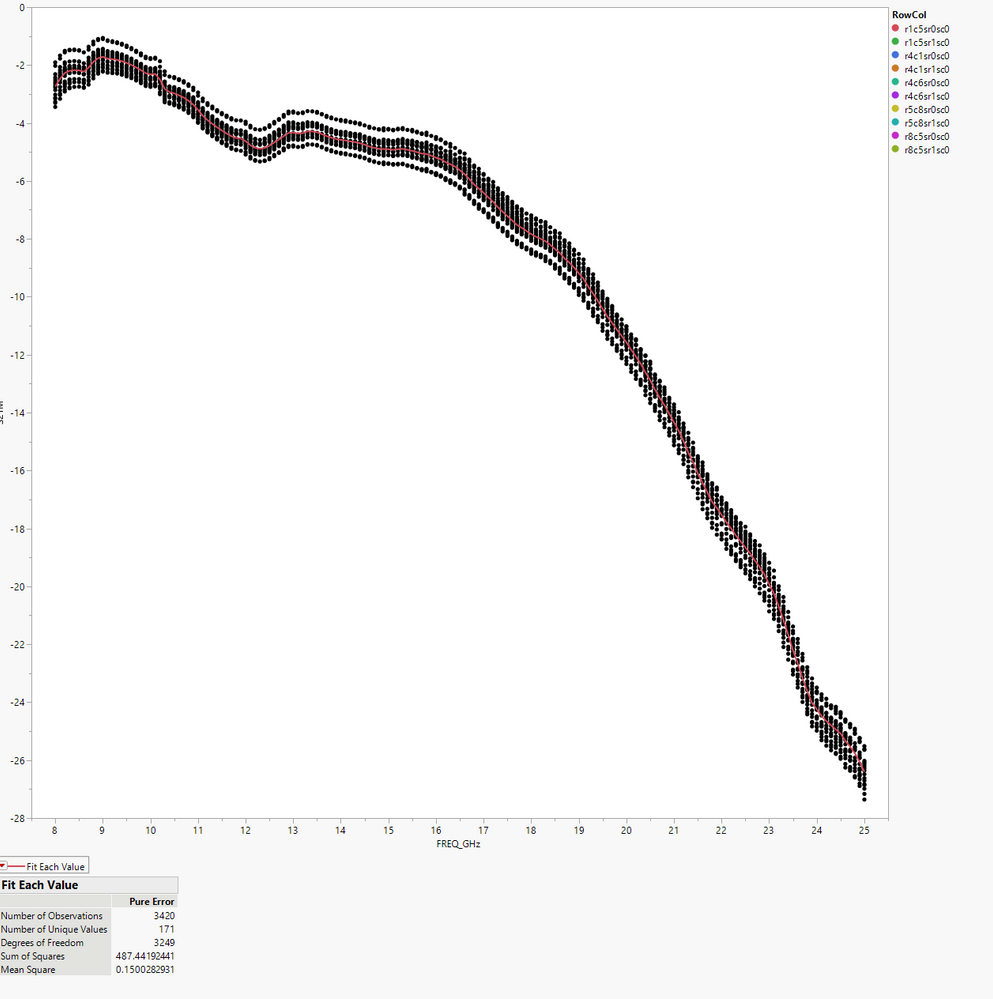
Thanks for the reply.. I tried that and here is what i get.... Ideally, i would like to get rid of the points and just use the line without having to plot means... The 1st picture is exactly how i would like it to look without it again, using means..
- Mark as New
- Bookmark
- Subscribe
- Mute
- Subscribe to RSS Feed
- Get Direct Link
- Report Inappropriate Content
Re: Displaying data values from Graph Builder
Select all of the rows. Go to the Row menu and select Hide.
- Mark as New
- Bookmark
- Subscribe
- Mute
- Subscribe to RSS Feed
- Get Direct Link
- Report Inappropriate Content
Re: Displaying data values from Graph Builder
That worked however i am still getting only 1 line for the 10 devices.. It looks like it is the mean off all 10 devices..
Community Manager
- Mark as New
- Bookmark
- Subscribe
- Mute
- Subscribe to RSS Feed
- Get Direct Link
- Report Inappropriate Content
Re: Displaying data values from Graph Builder
- Mark as New
- Bookmark
- Subscribe
- Mute
- Subscribe to RSS Feed
- Get Direct Link
- Report Inappropriate Content
Re: Displaying data values from Graph Builder
Thank you very much for that.... It was the combination of everything that i had tried to make it work...
Mr. @txnelson help create this great Function( that i am using in my Application and it's pretty much straight forward but when i saved this to the script window I see some extra stuff, Fit Where(. It is pretty static to what the current data table has a rowcol... How would you change it so it automatically does it on a new table?
Bivariate(
	Y( :ycol ),
	X( :xcol ),
	Show Points( 0 ),
// the following information will be different for each product / test
	Fit Where(
		:RowCol == "r1c5sr0sc0",
		Fit Each Value( {Report( 0 ), Line Color( {212, 73, 88} ), Report( 0 )} )
	),
	Fit Where(
		:RowCol == "r1c5sr1sc0",
		Fit Each Value( {Report( 0 ), Line Color( {61, 174, 70} ), Report( 0 )} )
	),
	Fit Where(
		:RowCol == "r4c1sr0sc0",
		Fit Each Value( {Report( 0 ), Line Color( {66, 112, 221} ), Report( 0 )} )
	),
	Fit Where(
		:RowCol == "r4c1sr1sc0",
		Fit Each Value( {Report( 0 ), Line Color( {204, 121, 41} ), Report( 0 )} )
	),
	Fit Where(
		:RowCol == "r4c6sr0sc0",
		Fit Each Value( {Report( 0 ), Line Color( {40, 182, 143} ), Report( 0 )} )
	),
	Fit Where(
		:RowCol == "r4c6sr1sc0",
		Fit Each Value( {Report( 0 ), Line Color( {162, 43, 221} ), Report( 0 )} )
	),
	Fit Where(
		:RowCol == "r5c8sr0sc0",
		Fit Each Value( {Report( 0 ), Line Color( {196, 189, 43} ), Report( 0 )} )
	),
	Fit Where(
		:RowCol == "r5c8sr1sc0",
		Fit Each Value( {Report( 0 ), Line Color( {39, 174, 174} ), Report( 0 )} )
	),
	Fit Where(
		:RowCol == "r8c5sr0sc0",
		Fit Each Value( {Report( 0 ), Line Color( {197, 41, 201} ), Report( 0 )} )
	),
	Fit Where(
		:RowCol == "r8c5sr1sc0",
		Fit Each Value( {Report( 0 ), Line Color( {142, 176, 40} ), Report( 0 )} )
	)
);

	Report( gb )[Framebox( 1 )] << Frame Size( 848, 755 ), << Marker Drawing Mode( "Normal" );
	Report( gb )[Framebox( 1 )] << Row Legend( RowCol, Color( 1 ), Color Theme( "JMP Default" ) );
Report( gb )[Framebox( 1 )] << Row Legend( Marker( 0 ), Marker Theme( "" ), Continuous Scale( 0 ), Reverse Scale( 0 ), Excluded Rows( 0 ) );Recommended Articles
- © 2026 JMP Statistical Discovery LLC. All Rights Reserved.
- Terms of Use
- Privacy Statement
- Contact Us