In the big data era we would like to have all data in e.g. databases, hadoop servers, or access it directly from streams. However, still many data is saved or written in spreadsheets, updated manually or automatically by machines, engineers, lab people or other kind of operators. In JMP it is easy to import any kind of data from a spreadsheet to JMP. You can even automate this easily using the automatically generated "Source" script. But, if you run this script again a new data table opens and does not update the current data table.
Usually this is not exactly what you want. Why? You may have done some data cleaning or recoding already. You may have also done some analysis saved into the data table you want to use further on also for the new data. I will show you in this article a way to update your current data table with new data from a spreadsheet, preserving the rows you currently have and only adding the new rows from the spreadsheed.
There are two scenarios I want to cover:
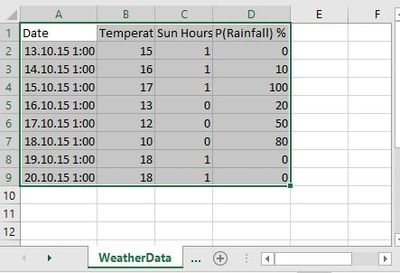
- In this article I cover the easy case of vertical structured data. That means you have one row with column names, and in the other rows beyond is the data.
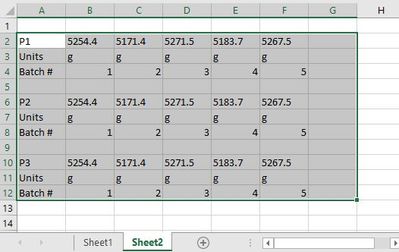
- In a second article I will cover the horizontal structured data case. That is first row/first column is the parameter name, in the following columns is the data. In the second row are the units, in the third row the batch number. Then an empty row and after that the same thing again for another parameter. This is easier to read in a spreadsheet but actually not very easy to analyze. I often see these kind of data, although it would be much better to train people to enter data in the vertical way than trying to workaround with the horizontal structure.
So let's take a look at the spreadsheet data, it's weather data, and it is simplistic for demonstrating the concept. Attached you will find the script in the JMP Data Table and the Excel spreadsheets for the first case.
Let's start with the situation
We have already imported an earlier version of the spreadsheet (3 rows of data to that point of time). Now we want to update the data table. You see an update script in the left top window of the data table. This script will do the following:
- Access the current data table name and the number of rows in that data table
- Set the spreadsheet file name and worksheet name we want to get the new data from
- Opens the spreadsheet and read the worksheet data into a help data table.
- We rely on the source script generated when we imported the data the first time.
- But changed the "Data Starts on Row" entry from (2) to (2+n_Rows), so we only get the data we have not already imported
- Now we only have to concatenate the two tables using the "Append to first table" option.
	cdt = Current Data Table();
	excelFile = "WeatherData.xlsx";
	name_worksheet = "WeatherData"; // or "Sheet1" for this Excel book example
	n_Rows = N Rows();

	dt_h1 = Open(
		excelFile,
		Worksheets( name_worksheet ),
		Use for all sheets( 1 ),
		Concatenate Worksheets( 1 ),
		Create Concatenation Column( 0 ),
		Worksheet Settings(
			1,
			Has Column Headers( 1 ),
			Number of Rows in Headers( 1 ),
			Headers Start on Row( 1 ),
			Data Starts on Row( 2 + n_Rows ),
			Data Starts on Column( 1 ),
			Data Ends on Row( 0 ),
			Data Ends on Column( 0 ),
			Replicated Spanned Rows( 1 ),
			Suppress Hidden Rows( 1 ),
			Suppress Hidden Columns( 1 ),
			Suppress Empty Columns( 1 ),
			Treat as Hierarchy( 0 )
		),
		Invisible
	);

	cdt << Concatenate  (dt_h1, Append to first table);

	Close(dt_h1);
Conclusion
Does not seem to difficult. The nice thing is that you can use e.g. data cleaning features like recode, save it as a formula column, and the new data will be handled automatically. Or you have created a predictive model with the previous data, saved the prediction formula back to the data table and see the predictions for the new data (and e.g. compare it to a new model, or the actual predicted data). I'm sure you will find plenty of use cases, and hope this will be useful for you.
Of course you can use this and extend it by adding analysis to the data, like updating a control chart or other trend analysis. Using Windows Scheduler you might want to then update your report and send it to our new product JMP Live, so other people (not necessarily licensed JMP users) can access the reports in a web browser with the interactivity of JMP like data filter, column switcher, and so forth.
What to expect next
In my next post I will talk about the second case which is slightly different, but not much more difficult.
I'm interested to hear if you have this kind of problem, or how your data is structured (in spreadsheets). Please leave your comments.
All the best,
Martin
PS: Two comment to the files:
- In WeatherData.jmp you will find a script for updating the data table with the attached Excel File. Both files have to be saved in the same folder (this was for simplicity, you can easily change the hard coded File Name with e.g. Pick File(), and also extract the name.
- The second script is "Remove last two rows" which allows to remove rows in the data table to update again from the Excel Sheet, without having to manually delete the rows. So all for your convenience :)