- Don’t miss your chance to experience Discovery Summit Europe at our best available rate! Early bird registration through 31 Oct.
- Graph Builder Toolbar streamlines interactive graphing. Creates shortcuts on Report and GraphBuilder Helpers toolbars. Download and install the extension.
- Subscribe to RSS Feed
- Mark Topic as New
- Mark Topic as Read
- Float this Topic for Current User
- Bookmark
- Subscribe
- Mute
- Printer Friendly Page
Discussions
Solve problems, and share tips and tricks with other JMP users.- User Community
- :
- Discussions
- :
- Re: Semiconductor Toolkit not displaying background maps

- Mark as New
- Bookmark
- Subscribe
- Mute
- Subscribe to RSS Feed
- Get Direct Link
- Report Inappropriate Content
Semiconductor Toolkit not displaying background maps
Hi folks;
I have downloaded the latest Semiconductor Toolkit from Marketplace for JMP 19.
I tried to reproduce a set of wafer maps outlined in the tutorial by selecting a 300 mm map as a background map and using the example data set included with the toolkit.
When I display my data, the background maps do not appear. Instead, the heatmaps are all square maps.
Has anybody else encountered this?

Accepted Solutions
- Mark as New
- Bookmark
- Subscribe
- Mute
- Subscribe to RSS Feed
- Get Direct Link
- Report Inappropriate Content
Re: Semiconductor Toolkit not displaying background maps
Working with Laura Archer in JMP technical support, she was able to get a solution to the problem.
1. De-register STK from the list of AddIns.
2. Reinstall STK from marketplace.jmp.com.
3. Copy and paste the Maps folder from C:\Users\[username]\AppData\Roaming\JMP to C:\Users\[username]\AppData\Roaming\JMP\JMP.

4. Restart JMP and open STK, click on the Map Manager button.
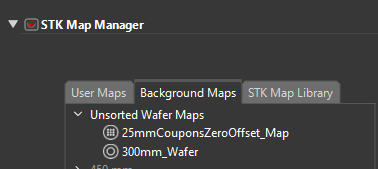
5. Set the 300mm_Wafer map in the STK Map Library as a background map. It should appear in the list of Unsorted Wafer Maps.
6. Click the Bare Wafer Map (Mapping) button and load the example data. Setup the plot as shown in the demo.
Result: I can now display the demo data with the 300mm_Wafer background map.


- Mark as New
- Bookmark
- Subscribe
- Mute
- Subscribe to RSS Feed
- Get Direct Link
- Report Inappropriate Content
Re: Semiconductor Toolkit not displaying background maps
Same here and I don't know why.

- Mark as New
- Bookmark
- Subscribe
- Mute
- Subscribe to RSS Feed
- Get Direct Link
- Report Inappropriate Content
Re: Semiconductor Toolkit not displaying background maps


- Mark as New
- Bookmark
- Subscribe
- Mute
- Subscribe to RSS Feed
- Get Direct Link
- Report Inappropriate Content
Re: Semiconductor Toolkit not displaying background maps
HI, all!
For future reference, @StandardCrow102 , @ElizabethWebb, @hogi - questions about add-ins should go in the Q&A tab for the add-in over in the marketplace. The developer is automatically notified when someone posts something over there. So you won't be waiting for a week to get an answer without the developer knowing. ;)

Now, could one of you right click on your graph and select graph > background map...

and show me what you see in the dialog that comes up? It should look something like this:

Best,
M
- Mark as New
- Bookmark
- Subscribe
- Mute
- Subscribe to RSS Feed
- Get Direct Link
- Report Inappropriate Content
Re: Semiconductor Toolkit not displaying background maps
Hi Mike;
Big thanks for getting back to us. Here is what I see when I do the following.
1. Start the Semiconductor Toolkit Add In.
2. Click the Bare Wafer Map (Mapping) button.
3. Click OK to load the example data set.
4. Configure the plot for Response to Response axis, XY to XY Coordinates, and Sampling pattern to By. Five square maps are displayed.
5. Right-click on the displayed "49 site Radial" map and select Graph --> Background Map.
Attached is what is displayed. Note that I have already placed "300mm_wafer" in the list of Unsorted Background Maps.

- Mark as New
- Bookmark
- Subscribe
- Mute
- Subscribe to RSS Feed
- Get Direct Link
- Report Inappropriate Content
Re: Semiconductor Toolkit not displaying background maps
@StandardCrow102 - interesting. Can you show me what the folder looks like? In the map manager you can use the LRT to bring it up:

- Mark as New
- Bookmark
- Subscribe
- Mute
- Subscribe to RSS Feed
- Get Direct Link
- Report Inappropriate Content
Re: Semiconductor Toolkit not displaying background maps
It looks only slightly different from yours. I am currently on JMP 19.0.1 for Windows.

- Mark as New
- Bookmark
- Subscribe
- Mute
- Subscribe to RSS Feed
- Get Direct Link
- Report Inappropriate Content
Re: Semiconductor Toolkit not displaying background maps
And here's the folder content. I do not see the 300mm_wafer map included.

- Mark as New
- Bookmark
- Subscribe
- Mute
- Subscribe to RSS Feed
- Get Direct Link
- Report Inappropriate Content
Re: Semiconductor Toolkit not displaying background maps
@StandardCrow102 - okay - that explains why it's not working. The 300 mm files aren't where they need to be for the background maps to work.
Try going into the maps manager and going to the STK Map Library tab. Right click on the 300 mm wafer and select "add to background maps". That should copy it to background maps tab. Use the LRT option to double check that the map files are in the folder.

It was a design choice to not do this automatically since it would have spammed peoples background maps dialog if I dumped all the different options in there.
Best,
M
- Mark as New
- Bookmark
- Subscribe
- Mute
- Subscribe to RSS Feed
- Get Direct Link
- Report Inappropriate Content
Re: Semiconductor Toolkit not displaying background maps
Hi Mike;
300mm_wafer is already in the list of Background Maps.

Recommended Articles
- © 2026 JMP Statistical Discovery LLC. All Rights Reserved.
- Terms of Use
- Privacy Statement
- Contact Us