- Don’t miss your chance to experience Discovery Summit Europe at our best available rate! Early bird registration through 31 Oct.
- Graph Builder Toolbar streamlines interactive graphing. Creates shortcuts on Report and GraphBuilder Helpers toolbars. Download and install the extension.
- Subscribe to RSS Feed
- Mark Topic as New
- Mark Topic as Read
- Float this Topic for Current User
- Bookmark
- Subscribe
- Mute
- Printer Friendly Page
Discussions
Solve problems, and share tips and tricks with other JMP users.- User Community
- :
- Discussions
- :
- Re: Means Comparison Oneway Analysis ... how to dynamically order side-by-side b...

- Mark as New
- Bookmark
- Subscribe
- Mute
- Subscribe to RSS Feed
- Get Direct Link
- Report Inappropriate Content
Means Comparison Oneway Analysis ... how to dynamically order side-by-side boxplots by mean value left to right
Looking for an automated way to automatical order side-by-side box plots by mean value left to right ... and by dynamically I mean being able to seamlessly do this on the fly in response to change in Local Data Filter and/or Column Switcher. Thanks in advance!
Accepted Solutions


- Mark as New
- Bookmark
- Subscribe
- Mute
- Subscribe to RSS Feed
- Get Direct Link
- Report Inappropriate Content
Re: Means Comparison Oneway Analysis ... how to dynamically order side-by-side boxplots by mean value left to right
Which JMP platform are you using Fit Y by X or something else? Off the top of my head, if using Fit Y by X, I would use a custom script to add the data filter and add to it a Data Filter Handler. That is a bit involved.
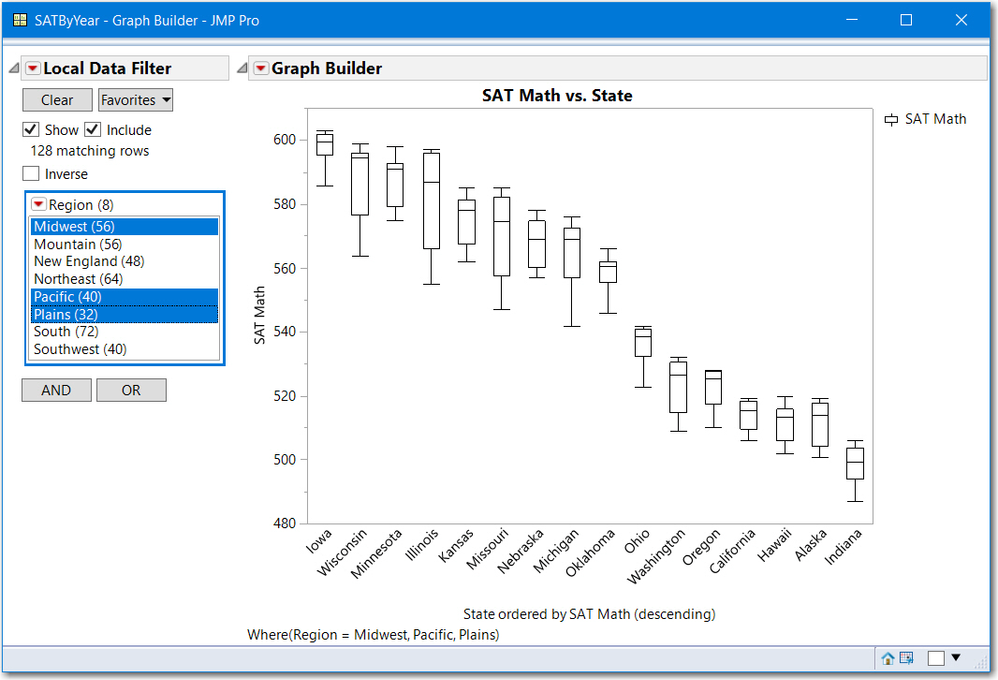
If you are using Graph Builder to draw your boxplots, you can right click in the X-Axis (group axis) and select which Order by Statistic, default is the mean, and Select which Y variable to order by either ascending or desending.
The script below opens the JMP sample data table SATByYear.jmp and creates a Graph Builder boxplot of SAT Math vs. State with a Local Data Filter for Region. Now select one or several regions and ordering is updated automatically. Change from descending to ascending. You can do all of this voa point & click.
I hope this meets your needs.
Names Default to Here(1);
dt = Open("$Sample_data/SATByYear.jmp");

gb = dt << Graph Builder(
	Size( 534, 464 ),
	Show Control Panel( 0 ),
	Variables(
		X( :State, Order By( :SAT Math, Descending, Order Statistic( "Mean" ) ) ),
		Y( :SAT Math )
	),
	Elements( Box Plot( X, Y, Legend( 6 ) ) ),
	Local Data Filter(
		Add Filter(
			columns( :Region ),
			Display( :Region, Size( 160, 120 ), List Display )
		)
	)
);
- Mark as New
- Bookmark
- Subscribe
- Mute
- Subscribe to RSS Feed
- Get Direct Link
- Report Inappropriate Content
Re: Means Comparison Oneway Analysis ... how to dynamically order side-by-side boxplots by mean value left to right
Which JMP platform are you using Fit Y by X or something else? Off the top of my head, if using Fit Y by X, I would use a custom script to add the data filter and add to it a Data Filter Handler. That is a bit involved.
If you are using Graph Builder to draw your boxplots, you can right click in the X-Axis (group axis) and select which Order by Statistic, default is the mean, and Select which Y variable to order by either ascending or desending.
The script below opens the JMP sample data table SATByYear.jmp and creates a Graph Builder boxplot of SAT Math vs. State with a Local Data Filter for Region. Now select one or several regions and ordering is updated automatically. Change from descending to ascending. You can do all of this voa point & click.
I hope this meets your needs.
Names Default to Here(1);
dt = Open("$Sample_data/SATByYear.jmp");

gb = dt << Graph Builder(
	Size( 534, 464 ),
	Show Control Panel( 0 ),
	Variables(
		X( :State, Order By( :SAT Math, Descending, Order Statistic( "Mean" ) ) ),
		Y( :SAT Math )
	),
	Elements( Box Plot( X, Y, Legend( 6 ) ) ),
	Local Data Filter(
		Add Filter(
			columns( :Region ),
			Display( :Region, Size( 160, 120 ), List Display )
		)
	)
);
- Mark as New
- Bookmark
- Subscribe
- Mute
- Subscribe to RSS Feed
- Get Direct Link
- Report Inappropriate Content
Re: Means Comparison Oneway Analysis ... how to dynamically order side-by-side boxplots by mean value left to right
yes using Fit Y by X just like I was taught in my first-ever JMP-based statistics course in 1997 in Portland Oregon
Recommended Articles
- © 2026 JMP Statistical Discovery LLC. All Rights Reserved.
- Terms of Use
- Privacy Statement
- Contact Us