- Don’t miss your chance to experience Discovery Summit Europe at our best available rate! Early bird registration through 31 Oct.
- Image to Table JMP extension imports single or batch images as data tables. Useful to extract curves from pictures or convert image data to curve data to use in analyses like Functional Data Explorer. Download and install the extension.
- Subscribe to RSS Feed
- Mark Topic as New
- Mark Topic as Read
- Float this Topic for Current User
- Bookmark
- Subscribe
- Mute
- Printer Friendly Page
Discussions
Solve problems, and share tips and tricks with other JMP users.- User Community
- :
- Discussions
- :
- Re: Column Properties for spec limits - import?

- Mark as New
- Bookmark
- Subscribe
- Mute
- Subscribe to RSS Feed
- Get Direct Link
- Report Inappropriate Content
Column Properties for spec limits - import?
I have a raw dataset that does not have spec limits. The spec limits that I would like to add to the column properties are contained in another dataset. How do I pull the spec limits into the column properties without manually typing them into each column property?
Accepted Solutions


 Community Manager
- Mark as New
- Bookmark
- Subscribe
- Mute
- Subscribe to RSS Feed
- Get Direct Link
- Report Inappropriate Content
Re: Column Properties for spec limits - import?
Hi,
One way you can add the spec limits from a data table is as follows--
Using the Cities.jmp data table from the sample data.
Launch the Process Capability Platform by selecting Analyze > Quality and Process > Process Capability.
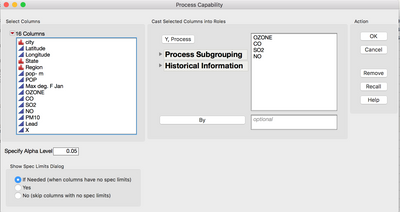
Ensure the radio button is enabled on the bottom left for either yes or if needed.
Add your Y, Process variables and select OK.
You will then be presented with a dialog to add spec limits either from a table or manually.
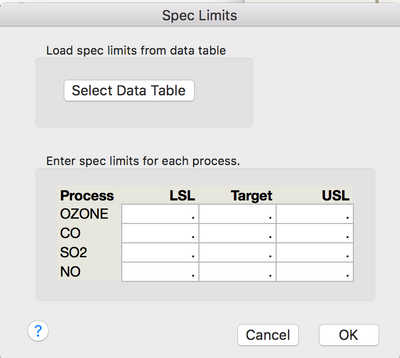
Choose the "Select Data Table" button to pick your spec limits table (Untitled 203 in my case) and press ok.
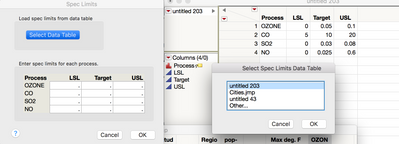
This will then add the spec limits to the Spec Limits table in the window. Select OK one more time.
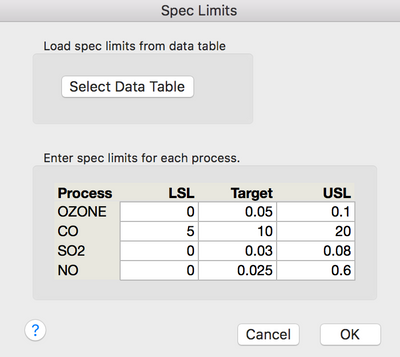
And now from the Process Capability red-triangle menu select "Save Spec Limits as Column Properties" option.
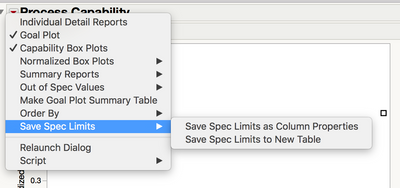
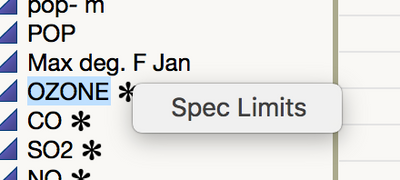
You can look at the data table and you will see they were added by clicking on the asterisk to display the spec limit column property.
Refer to Chapter 10 page 253 of the Quality and Process Methods book found under the help menu for additional details.
Or online by clicking the Entering Spec Limits
Cheers,
Stan


- Mark as New
- Bookmark
- Subscribe
- Mute
- Subscribe to RSS Feed
- Get Direct Link
- Report Inappropriate Content
Re: Column Properties for spec limits - import?
hi fg6mrw,
all you need to do is get the property you want from one column in one table and set it in another.
try the folowing:
Names Default To Here( 1 );
dt = Open( "$SAMPLE_DATA/Bank Loan.jmp" );
prop = :Time << Get Property( "Spec Limits" );
dt2 = Open( "$SAMPLE_DATA/Big class.jmp" );
:height << set property( "Spec Limits", Eval( prop ) );
ron
- Mark as New
- Bookmark
- Subscribe
- Mute
- Subscribe to RSS Feed
- Get Direct Link
- Report Inappropriate Content
Re: Column Properties for spec limits - import?
I am hoping to not have to learn scripting.
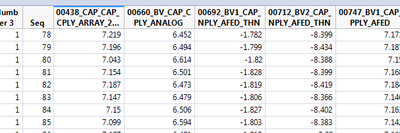
Here is what I have in the raw data (no spec limits applied)
And another file with the spec limits
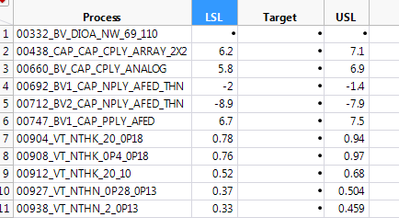
These are what I need to add to the column properties of the first file
Community Manager
- Mark as New
- Bookmark
- Subscribe
- Mute
- Subscribe to RSS Feed
- Get Direct Link
- Report Inappropriate Content
Re: Column Properties for spec limits - import?
Hi,
One way you can add the spec limits from a data table is as follows--
Using the Cities.jmp data table from the sample data.
Launch the Process Capability Platform by selecting Analyze > Quality and Process > Process Capability.
Ensure the radio button is enabled on the bottom left for either yes or if needed.
Add your Y, Process variables and select OK.
You will then be presented with a dialog to add spec limits either from a table or manually.
Choose the "Select Data Table" button to pick your spec limits table (Untitled 203 in my case) and press ok.
This will then add the spec limits to the Spec Limits table in the window. Select OK one more time.
And now from the Process Capability red-triangle menu select "Save Spec Limits as Column Properties" option.
You can look at the data table and you will see they were added by clicking on the asterisk to display the spec limit column property.
Refer to Chapter 10 page 253 of the Quality and Process Methods book found under the help menu for additional details.
Or online by clicking the Entering Spec Limits
Cheers,
Stan
- Mark as New
- Bookmark
- Subscribe
- Mute
- Subscribe to RSS Feed
- Get Direct Link
- Report Inappropriate Content
Re: Column Properties for spec limits - import?
Hi Stan,
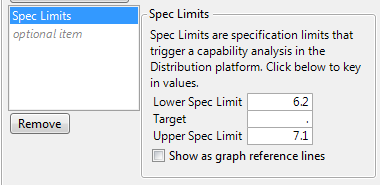
This is exactly what I was looking for, thank you! There is only one thing remaining that I can't figure out. The limits have been added to the column properties but the check box to have them show up as graph reference lines is not checked. Is there a way to do this for all the columns at once or do all the columns need to be edited one by one?
- Mark as New
- Bookmark
- Subscribe
- Mute
- Subscribe to RSS Feed
- Get Direct Link
- Report Inappropriate Content
Re: Column Properties for spec limits - import?
I was going to suggest using the standardize attributes feature; however, that will standardize not only that check box but the limits as well so not a good idea.

- Mark as New
- Bookmark
- Subscribe
- Mute
- Subscribe to RSS Feed
- Get Direct Link
- Report Inappropriate Content
Re: Column Properties for spec limits - import?
add or alter the part "Show Limits(0)" to "Show Limits(1)". this should be part of the variable prop
prop = :Time << Get Property( "Spec Limits" );
Recommended Articles
- © 2026 JMP Statistical Discovery LLC. All Rights Reserved.
- Terms of Use
- Privacy Statement
- Contact Us