Do you need to connect JMP to an open-source database- specifically PostgreSQL - from a Mac? Below are step-by-step instructions, involving two main parts:
-
Configuring the ODBC driver and manager.
-
Establishing the connection from within JMP.
Follow these steps to ensure a seamless connection.
Step 1: Configuring the ODBC driver and manager
1.1 Download the driver:
- Download the Actual Technologies ODBC driver from https://www.actualtech.com/download.php.
- Important: This driver is a licensed software. Without a license, only the first three rows of your database will be accessible.
- Tip: Download the driver using Safari, not Chrome, to avoid installation errors.
1.2 Run the installer
- Double-click on the “Actual ODBC Pack.pkg” icon to run the installer.

1.3 Open the ODBC manager
- Go to Macintosh HD/Applications/Utilities folder and double-click ODBC Manager.
1.4 Add a System or a User DSN
- Click on the System DSN or User DSN tab and select Add.
1.5 Configure the driver
- Select your driver (Actual Open Source Databases ) and click OK (see table below for note).
The table below lists which driver to choose based on the type of database you have:
|
Driver
|
Supported database(s)
|
Best for
|
|
Actual Access
|
Microsoft Access (.mdb, .accdb)
|
Legacy Access files, cross-platform sharing.
|
|
Actual Open Source
|
PostgreSQL, MySQL/MariaDB, SQLite
|
Modern, open-source database use cases.
|
|
Actual Oracle
|
Oracle database
|
Enterprise-grade Oracle database environments.
|
|
Actual SQL Server
|
Microsoft SQL Server, Azure SQL
|
Enterprise environments using SQL Server.
|
- Click on Licenses to add your license keys (first-time setup). Without a license, only three rows of data will be accessible.
- Give the Data Source a name and select PostgreSQL for type.

- Enter the server IP address, port number, login ID, and password as show below.
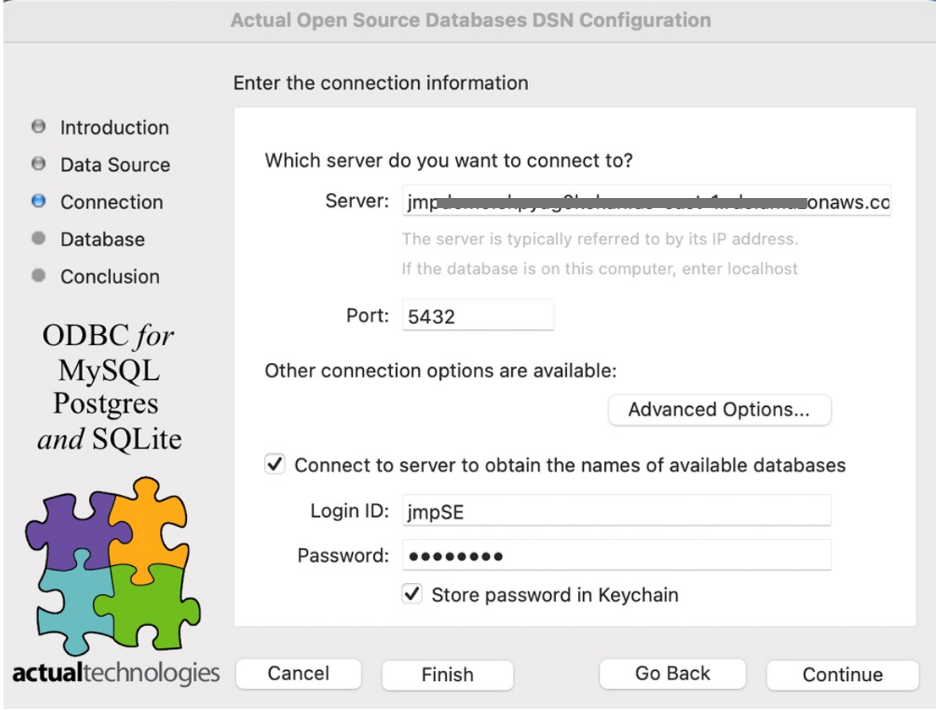
- Choose the database you want to connect to from the "Database" dropdown menu.
- Click Continue, then Test Connection to confirm everything works.
Step 2: Establishing the Connection in JMP
2.1 Create a new database connection
- In JMP, go to File --> New --> New Database Query --> New Connection.
- Select the Data Source Name (DSN) you created earlier.
- Enter the username and password, then click Choose DSN.

2.2 Select Schemas and Tables
- Browse the available schemas and tables and select those you want to query.

2.3 Build and run your query
- Construct your query by choosing the columns you want to add, and any columns you want to Filter or Order By.
- That's it! Your database is now connected and ready for analysis.


