Connecting to Databricks can be challenging because many standard ODBC configurations do not work as expected. This is partly due to differences between how JMP® interacts with system tables in traditional relational databases and how Databricks is architected.
To establish a Databricks connection from JMP, a Data Connector is required. The Data Connector allows users to add unique parameters that are often not provided or easy to find in some open-source ODBC drivers.
Below is a list of instructions to help you get started.
Build a Data Connector for Databricks by letting JMP pull parameters from an existing DSN:
- From JMP, click File > Connect To > Data Connector.
- Click New Connection.
- JMP will pull a list of DSNs from the ODBC Data Sources (64-bit) tool and a default set of data connectors shipped with JMP.
- JMP will pull in the DSN you created for Databricks.
- To modify it, click it and select New.
- JMP will open the Data Connector Editor based on the Simba DSN you selected.
Add Catalog:
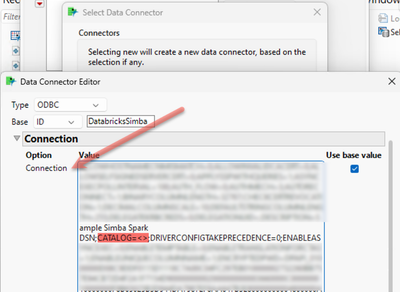
To add, type Catalog=<catalog_name> in the Connection dialog.
Disable Block Fetch:
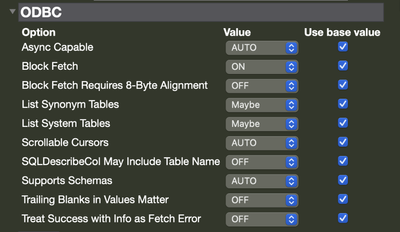
In the Data Connector, expand the ODBC section. Select the drop-down next to Block Fetch and select OFF.
Add Backticks:
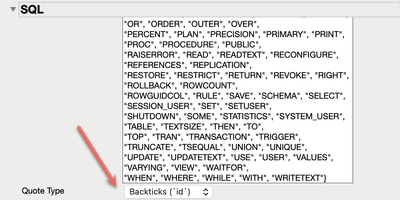
Expand the SQL section within the Data Connector. Next to Quote Type, click the drop-down. Select Backticks.
Test and Save your Data Connector.
Click Test to ensure the connection succeeds. Save your Data Connector (DC) with a unique name to help you easily identify it for future use. E.G. DC_Databricks_<CATALOG>.