This guide provides information on the Windows JMP interface. For information on creating a new data table, opening data tables, and finding help within JMP see Opening JMP and Getting Started.
The Home Window
- When you first open JMP, you’ll see the Tip of the Day window.
- You’ll also see the JMP Home Window, which includes:
- Menus and toolbars (top).
- Recently used files (on the left).
- All open data tables and windows (on the right). Hover over an item in the list for a preview.
- The JMP Starter, Home Window and other features can be accessed via the View menu.
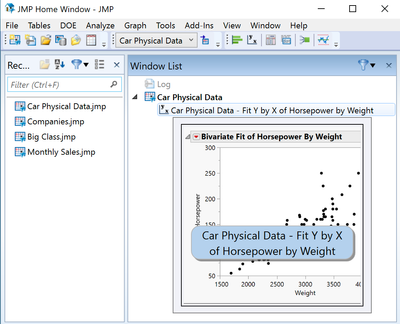 JMP Home Window
Navigation
- Data tables display thumbnails of open reports (bottom left).
Hover over a thumbnail for a preview.
- Each data table and report provides icons (bottom right corner) to facilitate navigation between windows:
- Return to the Home Window (or, click CNTL – 1).

- Go to the data table.

- Select to arrange with other windows.

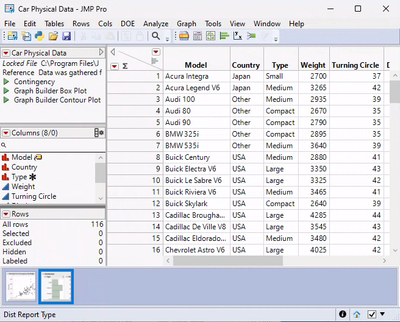 Data table open reports bottom left
Tips:
- Each window has a JMP menu and toolbar.
- To view a hidden menu click Alt, or hover on the report window where the menu would normally appear.
- To have menus and toolbars always display, go to File > Preferences > Windows Specific and change Auto-hide menus and toolbars from Based on window size to Never.
- The JMP Home Window and Tip of the Day appear by default when JMP is opened. To change the default windows, use File > Preferences > General.
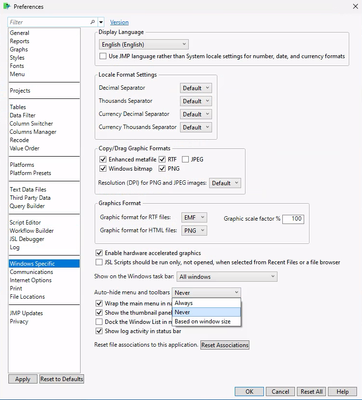 File>Preferences>General