- Discovery Summit 2026: Early User Edition - September 23-24.Register. It's free.
- Graph Builder Toolbar streamlines interactive graphing. Creates shortcuts on Report and GraphBuilder Helpers toolbars. Download and install the extension.
- Subscribe to RSS Feed
- Mark Topic as New
- Mark Topic as Read
- Float this Topic for Current User
- Bookmark
- Subscribe
- Mute
- Printer Friendly Page
Discussions
Solve problems, and share tips and tricks with other JMP users.- User Community
- :
- Discussions
- :
- Re: consistent marker and style control

- Mark as New
- Bookmark
- Subscribe
- Mute
- Subscribe to RSS Feed
- Get Direct Link
- Report Inappropriate Content
consistent marker and style control - type properties
I wished there was a consistent marker control in Graph Builder.
- Mark as New
- Bookmark
- Subscribe
- Mute
- Subscribe to RSS Feed
- Get Direct Link
- Report Inappropriate Content
Re: consistent marker and style control - type properties
The wish is from August (2025):consistent marker control in Graph Builder
It seems that someone else had the same wish, because here it is [1st part]!
A new era of style control in Graph Builder / JMP19:
Names Default to Here(1);
dt = Open( "$SAMPLE_DATA/Big Class Families.jmp" );
Graph Builder(
	Size( 590, 412 ),
	Graph Spacing( 4 ),
	Variables( X( :name ), Y( :weight ), Y( :height ), Color( :sex ) ),
	Elements( Position( 1, 1 ), Points( X, Y, Legend( 1 ) ) ),
	Elements( Position( 1, 2 ), Points( X, Y, Legend( 2 ) ) ),
	Column Switcher( :sex, {:age, :sex} ),
	SendToReport(
		Dispatch( {}, "400", ScaleBox,
			{Legend Model(
				1,
				Type Properties( 0, "Marker", {Marker( "Circle" )} )
			), Legend Model(
				2,
				Type Properties( 0, "Marker", {Marker( "FilledCircle" )} )
			)}
		))
);
In the Scripting Index, I could not find further documentation about the new feature:
https://jsl.jmp.com/search.html?q=Type+Properties
I guessit works along the idea: if all items of one plot type have the same setting, then this setting is saved via Type Properties() to the Legend Group.
Important: default settings (marker = dot, color=black, line style: solid) are not saved (!!) * )
*) further details about this behavior can be found in a previous post:
https://community.jmp.com/t5/Discussions/Do-you-use-the-preferences/m-p/913487/highlight/true#M10733...
- Mark as New
- Bookmark
- Subscribe
- Mute
- Subscribe to RSS Feed
- Get Direct Link
- Report Inappropriate Content
Re: consistent marker and style control
Not only for Marker Styles ; )
Graph Builder(
	Size( 466, 312 ),
	Show Control Panel( 0 ),
	Graph Spacing( 4 ),
	Variables( X( :name ), Y( :weight ), Y( :height ), Overlay( :sex ) ),
	Elements( Position( 1, 1 ), Line( X, Y, Legend( 3 ) ) ),
	Elements( Position( 1, 2 ), Line( X, Y, Legend( 4 ) ) ),
	Column Switcher( :sex, {:age, :sex} ),
	SendToReport(
		Dispatch( {}, "400", ScaleBox,
			{Legend Model(
				4,
				Base( 0, 0, 0, Item ID( "F", 1 ) ),
				Base( 1, 0, 1, Item ID( "M", 1 ) ),
				Type Properties( 0, "H Line", {Line Style( "Dashed" )} )
			)}
		)
	)
);- Mark as New
- Bookmark
- Subscribe
- Mute
- Subscribe to RSS Feed
- Get Direct Link
- Report Inappropriate Content
Re: consistent marker and style control
The new feature for the lines is very helpful.
Looking at consistent marker control in Graph Builder , the new feature is exactly proposed mode:
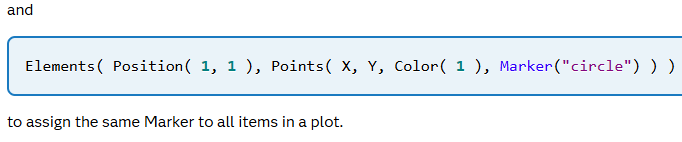
Very helpful will be the mode:
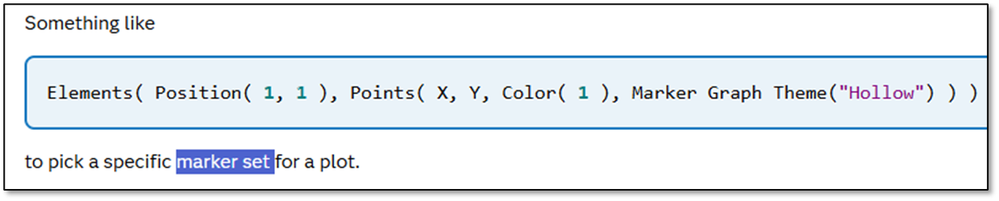
e.g. to generate the first graph with hollow markers and the second graph with filled markers.
or to use the left axis for hollow markers and the right axis for filled markers.
I just tried Type Properties( 0, "Marker", {Marker( "Hollow" )} ):but it doesn't work.
- Mark as New
- Bookmark
- Subscribe
- Mute
- Subscribe to RSS Feed
- Get Direct Link
- Report Inappropriate Content
Re: consistent marker and style control
Type Properties(), in combination with colors:
useful to batch assign a color to all entries - but one:

Names Default to Here(1);
dt = Open( "$SAMPLE_DATA/Big Class Families.jmp" );
Graph Builder(
	Variables( X( :name ), Y( :weight ), Color( :age ) ),
	Elements( Position( 1, 1 ), Points( X, Y, Legend( 1 ) ) ),

	SendToReport(
		Dispatch( {}, "400", ScaleBox,
			{
			Legend Model(
				1,
				Type Properties( 0, "Marker", { Line Color( 81 )} ),
				Properties( 1, {Line Color( 3 )}, Item ID( "15", 1 ) )
			)}
		))
);
- Mark as New
- Bookmark
- Subscribe
- Mute
- Subscribe to RSS Feed
- Get Direct Link
- Report Inappropriate Content
Re: consistent marker and style control
Ouch, here is an unintended side effect of type properties - with significant harm!
- The user was not happy with the default settings and adjusted the color for one item in the legend.
- during the exploratory data analysis, the user restricts the view to the item with the special setting
- this is where the new feature gets activated:
if all items of one plot type have the same setting, then this setting is saved via Type Properties() to the Legend Group.
- "all" -> even a single one (!)
JMP saved the specific setting as the default for the whole plot. - Later, when the user resets the selection in the data filter, this new setting is applied to all the other elements in the graph as well. By this inheritance of plot settings all elements get assimilated and share the same style:

In general, this is not what the users expect.
How can you escape the trap?
- To get rid of the Type Properties(), the user simply needs to revert (or overwrite) one of the settings:
- Even without the Type Properties() , the other items still share the inherited setting - it is hard-coded for each of them in the Dispatch command. So, to remove the inherited setting from all items, the user has to revert * ) them all.
*) Caution with revert:
Items with reverted (=default) settings become susceptible to inheritance via the 'Type Properties' function again.
- Mark as New
- Bookmark
- Subscribe
- Mute
- Subscribe to RSS Feed
- Get Direct Link
- Report Inappropriate Content
Re: consistent marker and style control
Items with their own settings are protected from unwanted inheritance:
So, the user has to apply special settings to EVERY entry in the legend to protect them from the spillover.
important in this context:
default settings (marker = dot, color=black, line style: solid) are not saved *
-> Standard dot, black and solid line? -> a big no-go until a bugfix is available.
- Mark as New
- Bookmark
- Subscribe
- Mute
- Subscribe to RSS Feed
- Get Direct Link
- Report Inappropriate Content
Re: consistent marker and style control
Interesting:
- Settings for Bar Graphs and Box Plots are NOT stored to Type Properties().
- Bar Graphs and Box Plots ignore Type Properties()
[if a graph is changed from Marker to Bar Graph, there will be a setting like
Type Properties( 0, "Bar", {Fill Color( 43 )} ),
but it's ignored by the Bar Graph]
- Mark as New
- Bookmark
- Subscribe
- Mute
- Subscribe to RSS Feed
- Get Direct Link
- Report Inappropriate Content
Re: consistent marker and style control
bug confirmed by JMP support [TS-00256956]
Important detail: The surprising behavior gets active when the graph is created via JSL.
It's not there the fist time when the graph is created via the GUI.
- Mark as New
- Bookmark
- Subscribe
- Mute
- Subscribe to RSS Feed
- Get Direct Link
- Report Inappropriate Content
Re: consistent marker and style control
-> fixed.
Recommended Articles
- © 2026 JMP Statistical Discovery LLC. All Rights Reserved.
- Terms of Use
- Privacy Statement
- Contact Us