- DownloadSemiconductor Toolkit: Tools to create wafer maps, add wafer geometry to graphics, explore die defects & compare wafers.
- Discovery Summit 2026: Early User Edition - September 23-24.Register. It's free.
- Use JMP Clinical with CDISC-compliant data. Review studies, ID safety and efficacy signals & communicate findings with interactive graphics. Register to see how. Aug. 27, 2 pm US ET.
JMPer Cable
A technical blog for JMP users of all levels, full of how-to's, tips and tricks, and detailed information on JMP features- JMP User Community
- :
- Blogs
- :
- JMPer Cable
- :
- Dynamically explore time-to-event outcomes using the Survival Explorer add-in
- Subscribe to RSS Feed
- Mark as New
- Mark as Read
- Bookmark
- Subscribe
- Printer Friendly Page
- Report Inappropriate Content


One of the nice things about working with Tabulate and Graph Builder is that it is possible to dynamically update an analysis on the fly to the population of observations included in the Data Filter. It can be exciting to see how summaries change as the underlying population is modified; it gives insight into how certain characteristics influence the results!
However, one set of endpoints is excluded from the benefits of dynamic updating in Graph Builder: time-to-event endpoints. While it is possible to produce an analysis from the Survival platform, save estimates to a data table, and produce a Kaplan-Meier plot in Graph Builder, it is not possible for this plot to respond to filtering of observations in the original data table without first updating the underlying data table of estimates obtained from Survival. This creates a loop. For the purposes of this blog, let’s assume we are talking about patients:
- Analyze patients using Survival and output estimates.
- Produce Kaplan-Meier plot from estimates using Graph Builder.
- Filter patients in original table using Data Filter.
- Update analysis in Survival and output new estimates.
- Rebuild plot from updates estimates using Graph Builder.
This continual updating of the Kaplan-Meier plot should be seamless and easy. The addition of a number at risk table that updates to the underlying estimates is important, too. Note that the number at risk table is a requirement for Kaplan-Meier plots for many medical journals (search for survival plot on the page) and for the U.S. Food and Drug Administration.
Enter the Survival Explorer add-in.
The Survival Explorer add-in performs a time-to-event analysis using the JMP Survival platform, producing a Kaplan-Meier plot with a number at risk table using Graph Builder. There are options to modify and annotate the plot with statistical tests and confidence intervals. Most importantly, the add-in enables users to add covariates to the accompanying Data Filter, giving insight into how the analysis changes dynamically by subsetting to the observations of interest.
The dialog for Survival Explorer is presented in Figure 1.
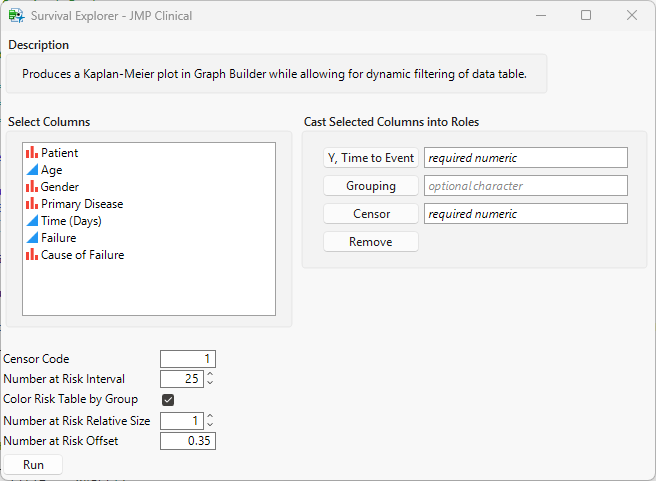
Description of roles:
- Y, Time to Event: A numeric column that indicates the time until an event or censoring for each observation.
- Grouping: An optional character column that will be used to produce a separate time-to-event curve for each level of the Grouping column.
- Censor: A numeric column that indicates whether an event or censoring outcome occurs for each observation.
Options include:
- Censor Code: The value of the Censor column that indicates whether an observation is censored. Other values indicate the observation experienced an event.
- Number at Risk Interval: The number at risk table is produced with values printed according to this interval. For example, if the interval is 25, the values in the number at risk table will be presented every 25 days (assuming the time column is measured in that unit). If the interval extends past the maximum time across all Grouping levels, the final entry will be presented at the maximum time.
- Color Risk Table by Group: If selected and a Grouping column is provided, this option will color rows of the risk table to match the color of the lines in the Kaplan-Meier plot. If unselected or no Grouping column is provided, values of the risk table will be black. This option requires that a Column Property for Value Colors be defined for the Grouping column.
- Number at Risk Relative Size: This value modifies the size of the number at risk relative to the Kaplan-Meier plot. For a large number of Grouping levels, this value should be increased to provide sufficient room for the number of levels at the bottom of the figure.
- Number at Risk Offset: This value modifies the position of the data presented in the number at risk to make it more aesthetically pleasing.
We illustrate the use of this add-in using the data set Survival of Liver Transplant Recipients from Collett (2023). This data set has 1,761 patients with data on time to graft failure in days, cause of the failure, age, gender, and primary disease (ALD: alcohol-induced liver disease, PSC: primary sclerosing cholangitis, PBC: primary biliary cholangitis).
The dialog listed in Figure 1 represents our analysis. The Failure column indicates whether patients are failures, so the Censor Code is set to 0. The maximum time is 4,720 days (nearly 13 years!), so the number at risk interval is set to 365. Defaults are used for the other options.
Figure 2 presents the results of the analysis from the Survival platform after adding gender and age to the Data Filter. The Add Simultaneous Intervals option is switched on.
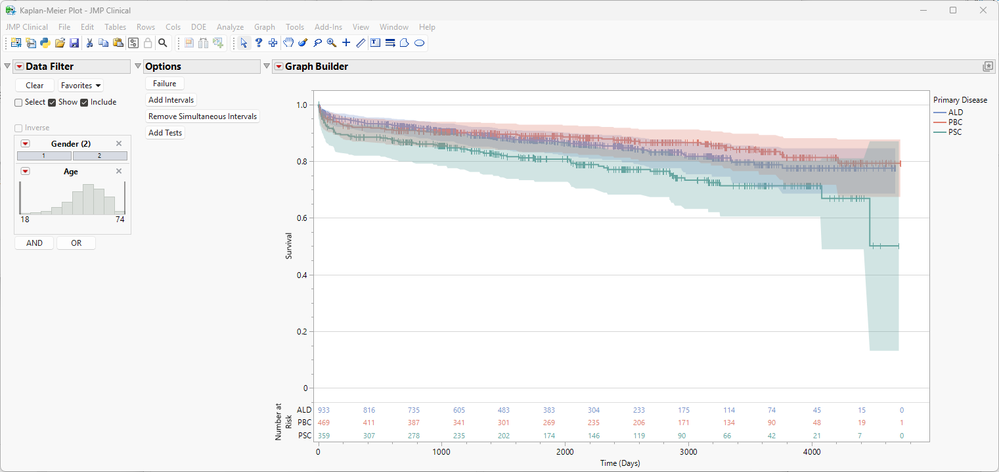
Up to four buttons are summarized in the Options area of the output. The names of the buttons change upon selection.
- Failure/Survival: This option switches the plot from a Survival configuration to a Failure configuration. In the Survival configuration, the Y axis begins at 1 and the probability decreases over time. The Y axis can be interpreted as the proportion of observations that survived (i.e., did not experience a failure). In the Failure configuration, the Y axis begins at 0 and the probability increases over time. The Y axis can be interpreted as the proportion of observations that experienced a failure (i.e., did not survive).
- Add Intervals/Remove Intervals: This option adds or removes the pointwise 95% confidence intervals around each curve.
- Add Simultaneous Intervals/Remove Simultaneous Intervals: This option adds or removes the simultaneous 95% confidence intervals around each curve.
- Add Tests/Remove Tests: This option adds or removes the p-values for the log-rank and Wilcoxon tests for differences between the Grouping levels for the survival curves. Note that this button is only produced if a Grouping column is selected.
In the Graph Builder area of the output, three lines are produced summarizing the time until graft failure. Vertical pipe symbols indicate times where at least one patient was censored. The number at risk table indicates that the study started with 933, 469, and 359 patients for ALD, PBC, and PSC, respectively. Values are presented every 365 days, though the last set of values is presented at 4,720 days since 4745 (13 × 365) extends past this maximum number of days. Due to dialog options, the number at risk table is printed in colors that match the colors of the lines and confidence intervals for the Primary Disease Grouping column.
Clicking Add Tests adds the log-rank and Wilcoxon p-values, 0.0004 and 0.0014, respectively.
Subsetting the Data Filter to Gender = 2 instantly updates the Graph Builder results to those presented in Figure 3.
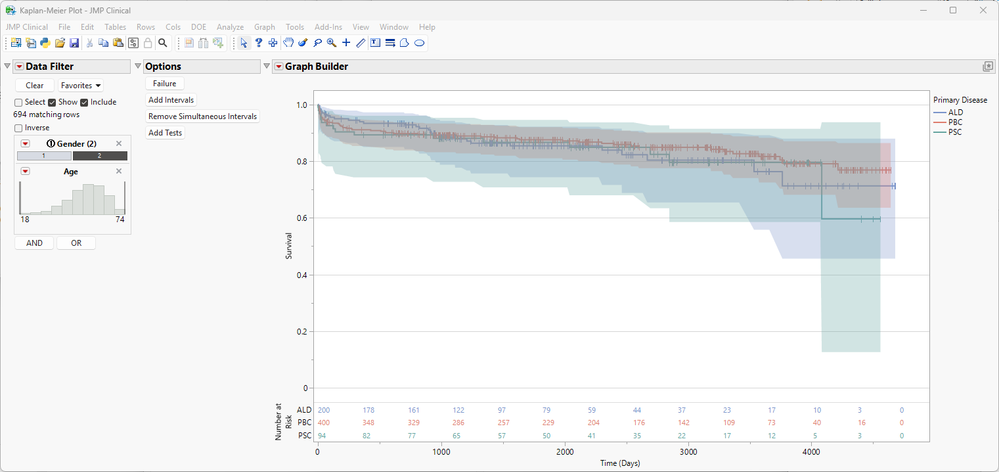
Here, the number at risk table indicates that there are 200, 400, and 94 patients for ALD, PBC, and PSC, respectively. With this change in sample size, the time until graft failure is not considered significant (log-rank: 0.7094, Wilcoxon: 0.8926).
The speed at which Graph Builder updates is especially notable when subsetting using a continuous variable such as age. See the video below.
References
Collett D. (2023). Modelling Survival Data in Medical Research, Fourth Edition. Boca Raton, Fl: CRC Press.
- © 2026 JMP Statistical Discovery LLC. All Rights Reserved.
- Terms of Use
- Privacy Statement
- Contact Us
You must be a registered user to add a comment. If you've already registered, sign in. Otherwise, register and sign in.